

Assets
How to track equipment and vehicles in Job Book: the Assets list and its saved views, the tabs of the asset form, flagging an asset for maintenance, and the Asset Management grid.
Key Concepts
An asset is a piece of equipment or a vehicle that the company tracks: a total station, a drone, a truck. The Assets list is the company’s equipment and fleet register. Each has a record of its own, with an owner, a storage location and a maintenance flag. Assets and Safety together are where Job Book keeps its maintenance and inspection records. The Assets card’s help tooltip reads “Manage your company’s assets and even assign ownership to employees.”
An asset is one record, and three ideas on it drive everything else on this page:
- Requires Attention and Problem Description: on the Maintenance tab are how you say an asset needs work. See Flagging an asset for maintenance.
- Decommissioned: a checkbox in its own panel below the tabs, so it belongs to the whole record whichever tab is showing. It is how an asset is taken out of service for good.
- Line Items on the Integration tab tie a physical asset to the Equipment and Materials cost items it is billed under, so the total station in the yard and the line that charges for it are the same thing to the system.
One field, three labels
An asset’s equipment number is labelled three different ways, and its class and serial number drift too. They are one field each; only the label changes with the screen.
| On the form | On the Assets list card | In the Asset Management grid |
|---|---|---|
| Equipment Number: | Equipment #: | Asset # |
| Serial Number: | Serial #: | Serial # |
| Equipment Class: | Class: | Asset Class |
This page uses the form’s label and gives the others where they appear.
Who can use Assets
Every role can look an asset up. A Job Coordinator on their own cannot create one or record a problem against one; see Users and Employee Profiles.
The Asset Management grid is for Managers and Administrators only.
Performing Common Tasks
Opening the Assets list
On the dashboard, in the Assets card, click Explore. The screen is titled Assets and opens on the All saved view.
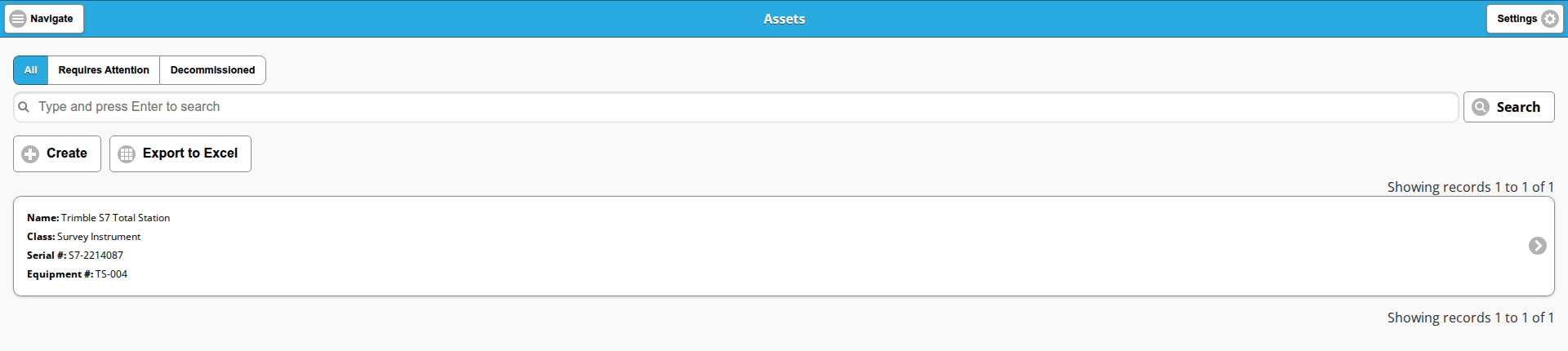
The saved views along the top decide which assets you see:
- All: every asset on the system.
- Requires Attention: only the assets whose Requires Attention checkbox is ticked.
- Decommissioned: only the assets whose Decommissioned checkbox is ticked.
A saved view holding nothing reads No records to display.
- Type into the search box, which reads “Type and press Enter to search”, and press Enter, or click Search.
- Create opens a blank asset form and Export to Excel downloads the list.
- Each card reads Name:, Class:, Serial #: and Equipment #:. Click the card, or the chevron (
>) button at its right-hand end, to open the asset.
Viewing an asset
Opening an asset from the list gives you its display view, which is read-only. The buttons above and below the record are Edit, Export to PDF, Delete and Back, which returns you to the list.
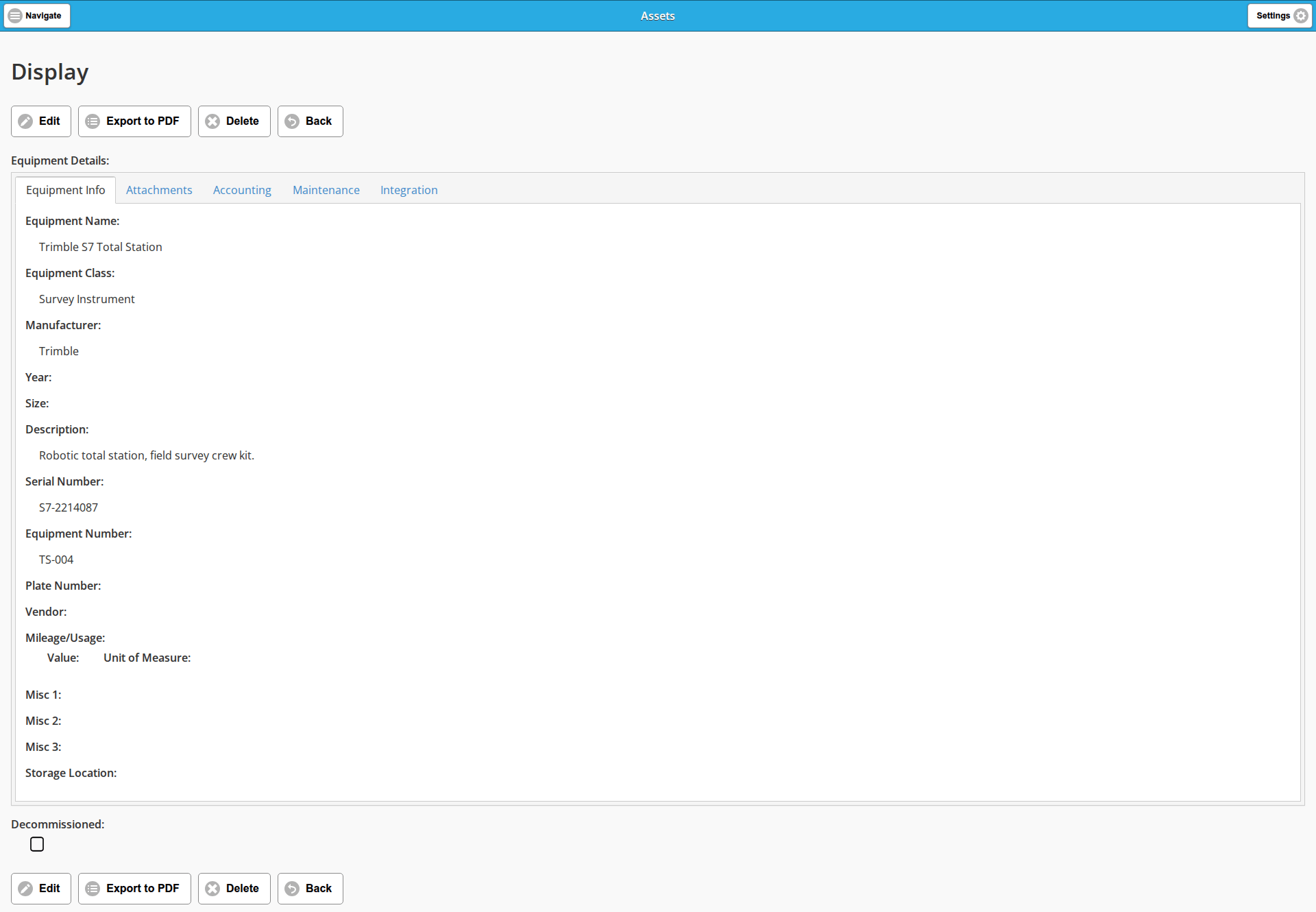
- Equipment Details: holds the tabs Equipment Info, Attachments, Accounting, Maintenance and Integration. The display view opens on Equipment Info.
- Every field on every tab is shown, whether it holds a value or not, so an empty label means nothing was entered.
- Decommissioned: sits below the tabs, outside them, and stays visible whichever tab you are on.
Creating an asset
There are two ways in:
- On the dashboard, in the Assets card, click Create New.
- In the Assets list, click Create.
The form opens titled Create, headed Equipment Details:, with the same tabs as the display view. Work through the tabs and save once at the end: the Decommissioned checkbox and the Save and Cancel buttons sit below the tabs and apply to the whole record.
Equipment Name: is the only field with a red asterisk beside it, so it is the only one the form requires. Save with it empty and the form highlights it in red, on this tab. Everything else can be left blank and filled in later.
The Equipment Info tab
The first tab describes the asset itself.
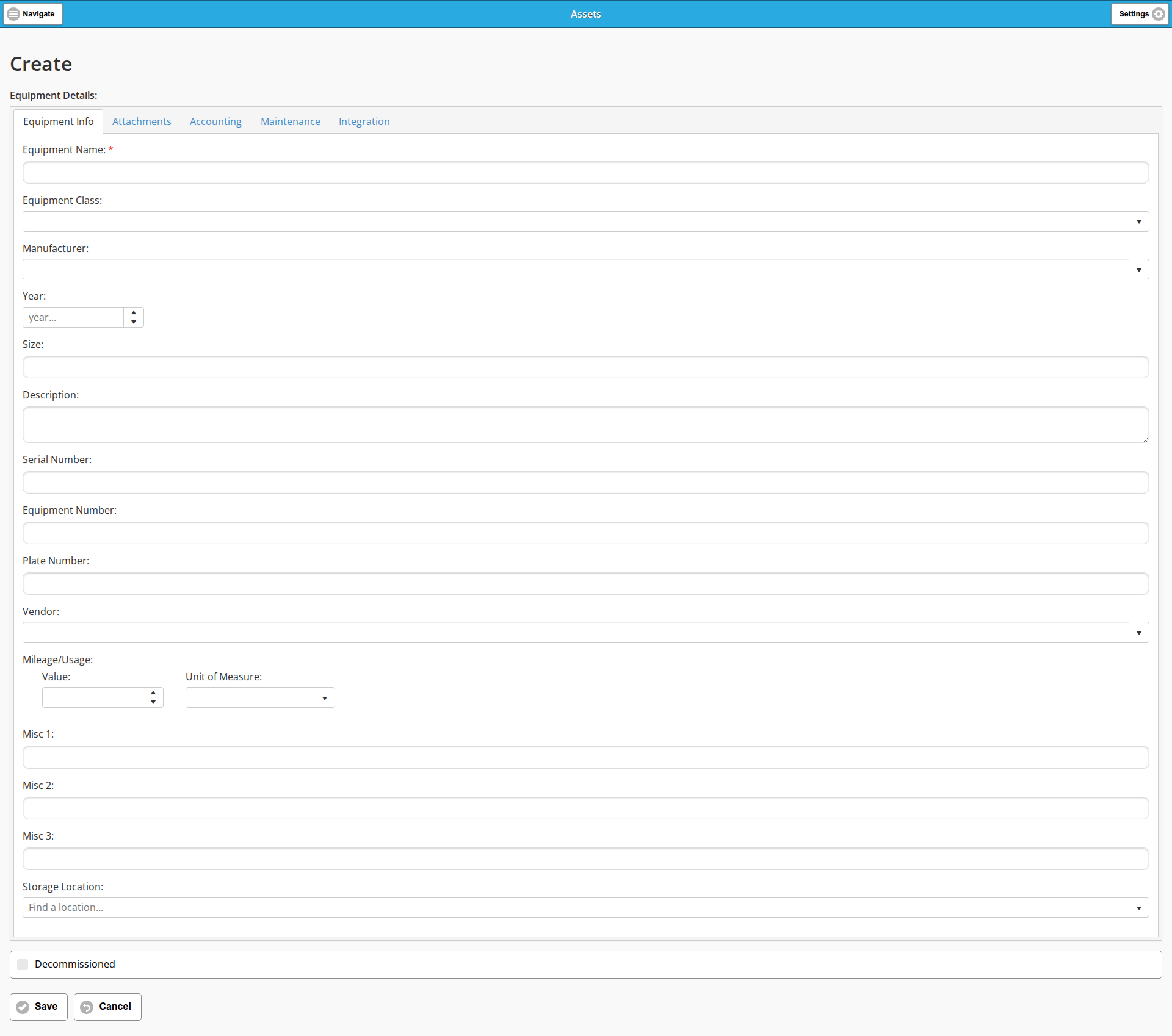
| Field | What you enter |
|---|---|
| Equipment Name: | Required. The name the asset is known by, such as Trimble S7 Total Station. |
| Equipment Class: | A drop-down. The class the asset belongs to, such as Survey Instrument. |
| Manufacturer: | A drop-down. |
| Year: | A number box, with the placeholder “year…”. |
| Size: | Free text. |
| Description: | Free text; you can type multiple lines here. |
| Serial Number: | The manufacturer’s serial number. |
| Equipment Number: | Your own number for the asset. |
| Plate Number: | For a vehicle, its licence plate. |
| Vendor: | A drop-down. |
| Mileage/Usage: | Value: and Unit of Measure:, side by side. The grid’s Usage column shows them together, as in “10000 kms”. |
| Misc 1:, Misc 2:, Misc 3: | Free-text boxes for anything your company tracks that the other fields do not cover. |
| Storage Location: | A searchable picker reading “Find a location…”, for where the asset is kept. Locations of your own are set up on the Asset Locations list. |
The Attachments tab
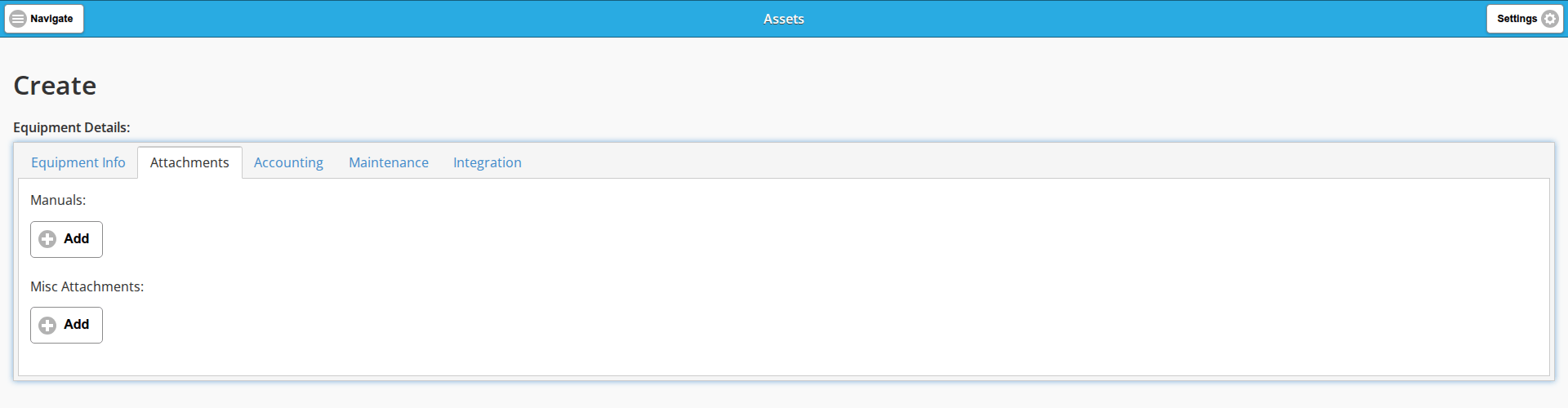
The second tab holds files. Each upload area starts empty with its own Add button:
- Manuals: for the asset’s manuals.
- Misc Attachments: for any other files you want kept with the record.
The Accounting tab
The third tab is the accounting record for the asset.
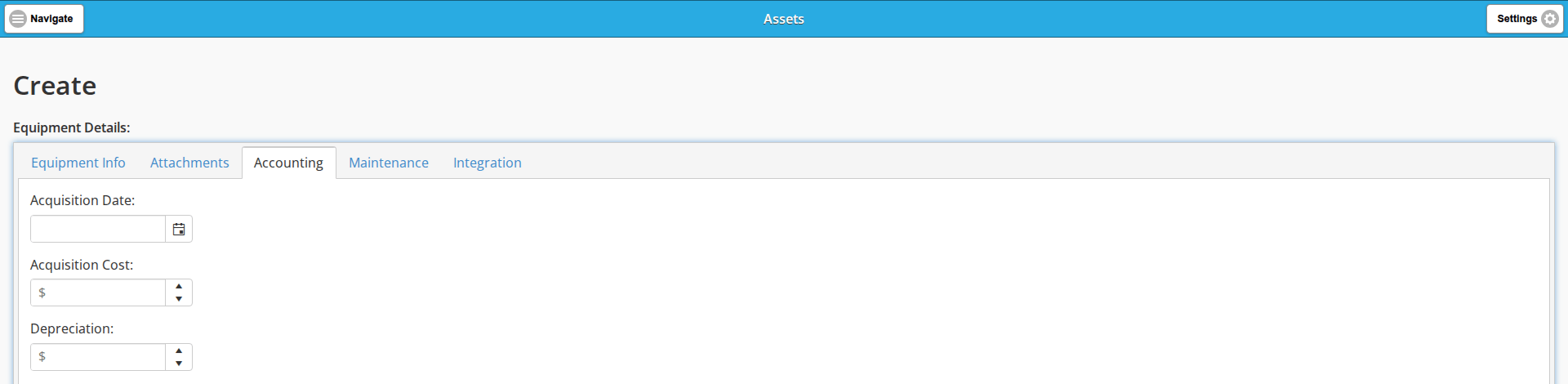
| Field | What you enter |
|---|---|
| Acquisition Date: | A date picker. When you bought the asset. |
| Acquisition Cost: | A currency box, marked $. |
| Depreciation: | A currency box. |
| Useful Life: | A number box, with the placeholder “years…”. |
| Salvage Value: | A currency box. |
| Previous Depreciation: | A currency box. |
| Depreciation Period: | A number box, with the placeholder “years…”. |
| Maintenance Expiration: | A date picker. The Asset Management grid has a column for it. |
| Warranty Expiration: | A date picker. |
Below those, Lease Information: groups the boxes for an asset you lease rather than own: the lease Start and end dates, then Buyout: and Monthly Cost:, both currency boxes.
The Maintenance tab
The fourth tab, headed Maintenance:, is where an asset is flagged as needing work:
- Requires Attention: a checkbox.
- Problem Description: a text box for what is wrong.
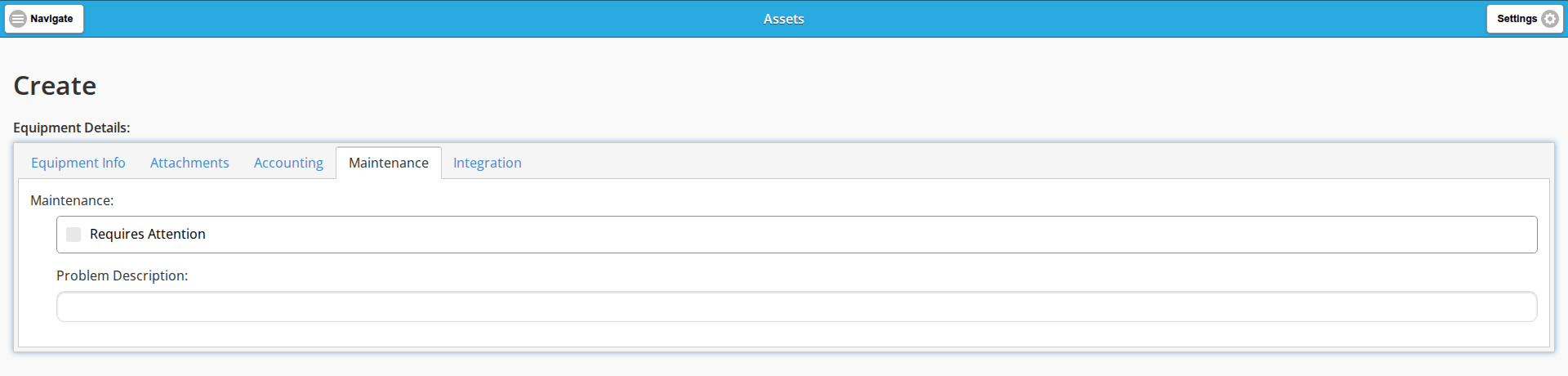
You would not usually set these on a brand-new asset. See Flagging an asset for maintenance for how they are used day to day.
The Integration tab
The fifth tab connects the asset to the rest of Job Book:
- Owner: a picker reading “Find an employee…”. This is the “assign ownership to employees” the Assets card’s tooltip promises.
- Line Items: an Add button. Add does not open a separate window: it inserts a row with a picker reading “Find a cost item…”, and a remove icon to its left in case you add a row by mistake. Click Add again for each further line item.
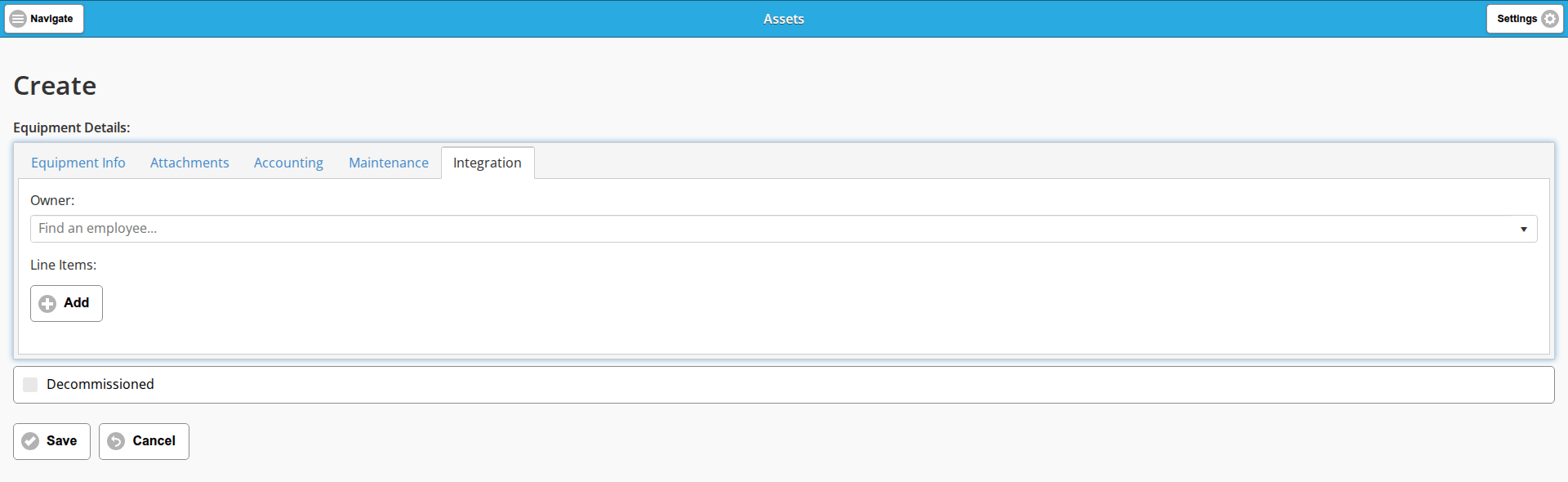
The cost items the Line Items: picker offers are the Equipment and Materials items set up under Administration.
Editing an asset
Open the asset from the Assets list and click Edit on its display view. The screen is headed Edit and shows the same tabs, the same Decommissioned checkbox below them, and Save and Cancel above and below the record.
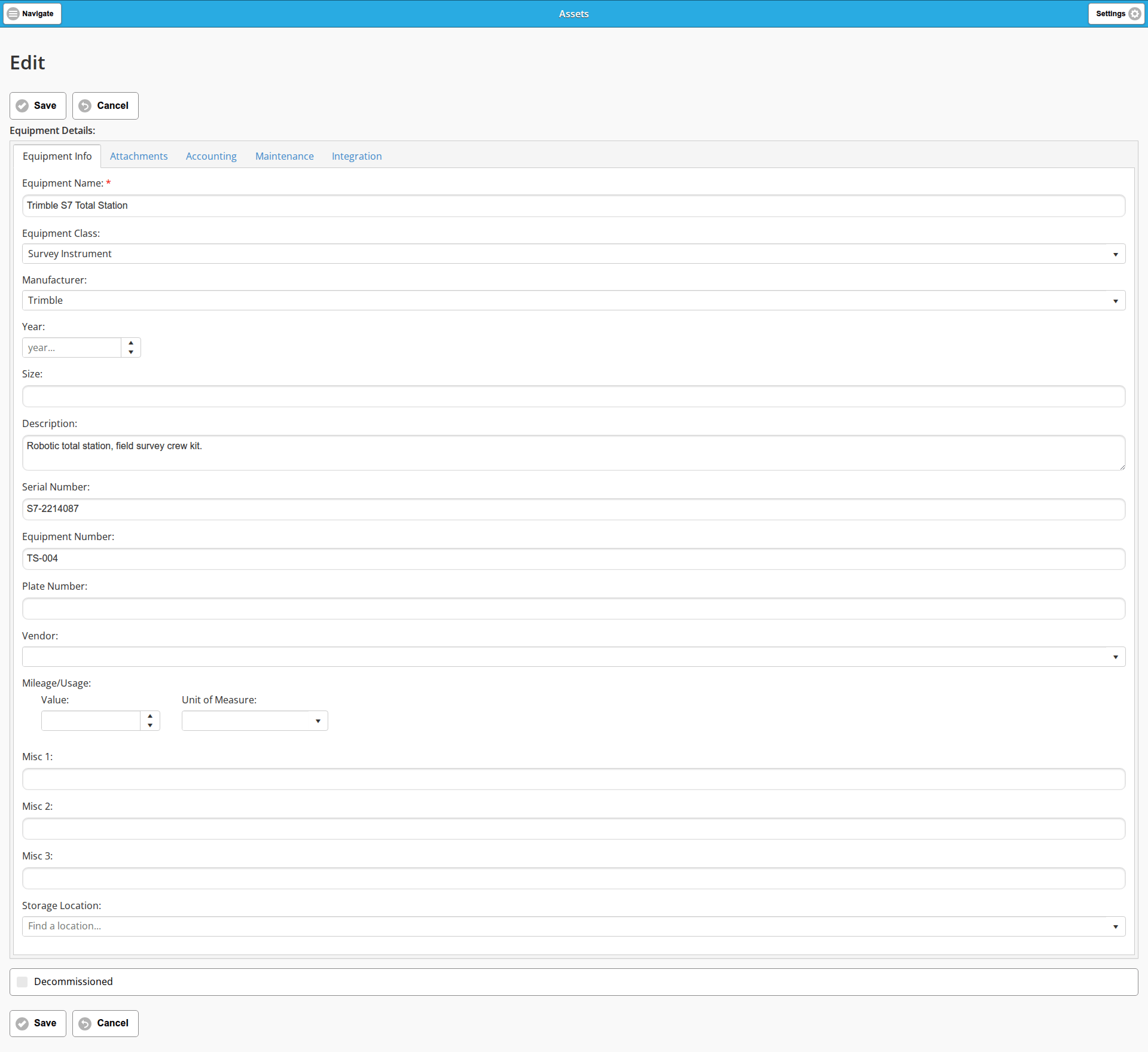
You can change any field. Click Save when you are done; Cancel leaves without saving.
Flagging an asset for maintenance
When a piece of equipment breaks or is due for service, record it against the asset:
- Open the asset from the Assets list and click Edit.
- Go to the Maintenance tab.
- Tick Requires Attention.
- Type what is wrong into Problem Description:, something short and specific such as “Flat Tire”.
- Click Save.
The flag then shows up in three places:
- the Assets list’s Requires Attention saved view now includes the asset;
- the Asset Management grid shows your text in its Maintenance Problem column;
- that asset’s status stripe in the grid turns red.
When the work is done, edit the asset again and clear Requires Attention. To take an asset out of service for good, tick Decommissioned below the tabs instead; it then shows in the list’s Decommissioned saved view.
Managing assets in the grid
On the dashboard, in the Assets card, click Manage Assets. The screen that opens is titled Asset Management.
This is a grid rather than a list of cards: the report grid described on Report Grids, so the column menu, the grouping bar, the template toolbar and Export to Excel work as they do there.

Above the grid sit a search box reading “Type here to search equipment…”, then the report grid’s own toolbar: Export to Excel, the template toolbar, a count on the right such as Showing 1 of 1 assets, and the grouping bar under them.
The grid opens with the columns in the table below. Each carries a box in the filter row beneath its header and a column menu behind the ⋮ icon in the header, for hiding the column or filtering on it. Type in a filter row box and the grid narrows to the rows containing what you typed:
| Column | Notes |
|---|---|
| Name | Sorted ascending when the screen opens. Each value is a link that opens the asset. |
| Manufacturer | |
| Asset Class | The asset’s Equipment Class. |
| Serial # | The asset’s Serial Number. |
| Asset # | The asset’s Equipment Number. |
| Usage | The Mileage/Usage value and unit. Its filter is a number box with an Is equal to operator and a filter button. |
| Maintenance Expiration | The column is too narrow for the whole word, so the header reads “Maintenance Expirat…” on screen. Its filter is a date picker, again with an Is equal to operator and a filter button. |
| Storage Location | |
| Maintenance Problem | Whatever was typed into Problem Description: on the Maintenance tab. |
| Actions | A pencil button, which opens the same form as Edit. |
More columns are hidden to start with. Turn them on from the column menu’s Columns checklist: Misc 1, Misc 2, Misc 3, Acq. Date, Acq. Cost, Depreciation, Life, Salvage Value, Previous Depreciation, Depreciation Period, Warranty Expiration and Vendor.
Each row carries a coloured stripe down its left edge: green for a healthy asset, red for one flagged Requires Attention. Nothing on the screen itself explains the colours.
Last updated