

Backlog Grids
How the backlogs share one grid: ticking rows and the batch button, the funnel filter and the filter row, sorting, grouping, expanding a row, Expand All and Collapse All, and Undo Last Batch.
Key Concepts
The backlogs on the Workflow card, the DWR Approval Backlog, the DWR Invoice Backlog, the Expense Approval Backlog and the Invoice Processing Backlog, show their rows in one grid. Each is a queue of records, Daily Work Records (DWRs), expenses or invoices, waiting for one action, and the grid is built for doing that action to many of them at once: tick the rows, click the button. This page describes the grid. The page for each backlog describes its columns, what the action does, and what happens to a record afterwards.

From left to right and top to bottom:
- the batch button: at the top left, named for the action: Approve Selected DWRs, Invoice Selected DWRs, Approve Selected Expenses or Process Selected Invoices. It is greyed until a row is ticked.
- Expand All and Collapse All: at the top right, on the three backlogs whose rows expand.
- Undo Last … Batch: at the far right, greyed until there is a batch to undo.
- grouping bar: the strip reading “Drag a column header and drop it here to group by that column”.
- the checkbox column: a checkbox on every row and one in the header.
- column header: click it to sort. The funnel at its right edge opens the Filter panel.
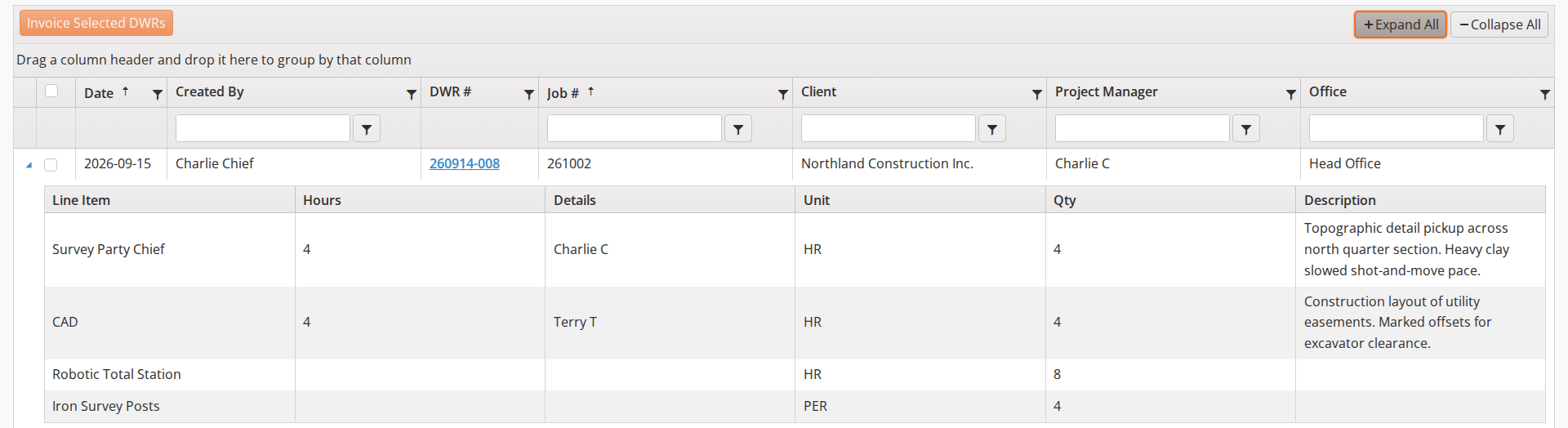
- filter row: a box under some of the headers, on three of the four backlogs.
The grid has no column menu, no template toolbar and no Export to Excel, so there is no Columns checklist, no saved layout and no download. Those belong to the Report Grids.
What differs from backlog to backlog
| Backlog | Rows expand, with Expand All and Collapse All | Filter row | Undo Last Batch |
|---|---|---|---|
| DWR Approval Backlog | Yes | Yes, starting on Is equal to | Yes |
| DWR Invoice Backlog | Yes | Yes, starting on Is equal to | No |
| Expense Approval Backlog | No | Yes, starting on Contains (Description on Is equal to) | Yes |
| Invoice Processing Backlog | Yes | No | Yes |
The Invoice Processing Backlog’s toolbar also carries the export, download and sync buttons, described on its own page.
Performing Common Tasks
Picking rows and running the batch
A batch is built by ticking rows.

The checkbox in the header ticks every row on screen and unticks them again. It only ticks the rows that pass your filters, so the way to act on one client, one job or one week is to filter first, tick the header, and click the button. The batch is exactly what you can see.
The button asks you to confirm before it acts, with the number of rows in the batch. Each backlog’s page says what the action does to a record.
Sorting and grouping
Click a column header to sort by that column. An arrow appears; click again to reverse the sort, and a third time to clear it. Clicking a second header adds a sort inside the first rather than replacing it, so several columns can be sorted at once, in the order you clicked them. Each backlog opens sorted by two columns already; its page says which.
Drag a column header onto the grouping bar and the rows are gathered under one heading per value, each heading collapsible with the triangle at its left. Drop a second header to group within groups. The header becomes a chip on the bar, with a × to take the grouping off. Grouping by Job # or Client before you tick anything is how you approve or invoice one job at a time.
Filtering with the funnel
Every column header carries a funnel. Click it and the Filter panel opens: “Show items with value that:”, an operator dropdown, a box for the value, an And / Or choice with a second operator and value, and the Filter and Clear buttons. It is the same panel the report grids open from their column menu, and the operators are the same:
- Text columns: Is equal to, Is not equal to, Starts with, Contains, Does not contain, Ends with, Is null, Is not null, Is empty, Is not empty, Has no value and Has value.
- Date columns: Is equal to, Is not equal to, Is after or equal to, Is after, Is before or equal to, Is before, Is null and Is not null, with a date picker.
- Number columns: Is equal to, Is not equal to, Is greater than or equal to, Is greater than, Is less than or equal to, Is less than, Is null and Is not null, with a number box.

Choose the operator, type the value and click Filter. To take it off, open the same panel and click Clear. Filters on different columns combine: a filter on Client and a filter on Date shows only the rows that pass both.
One column filters differently. Invoice Type on the Invoice Processing Backlog opens a checklist of Select All, Invoice and Ticket / Invoice instead of operators: tick what you want and click Filter.

Filtering with the filter row
On the DWR Approval, DWR Invoice and Expense Approval backlogs a row of boxes sits under the column headers. A box is the quick way to the same filter the funnel gives you:
- Type in the box. As you type, a list drops down of values in that column that start with what you typed, and you can pick one.
- Press Enter, or click anywhere else, and the filter applies. Typing alone does not filter.
- A × appears in the box once it has text; click it to clear that filter.
- The funnel button beside the box sets how the text is matched. It offers the same text operators as the funnel.

The operator the box starts on is the difference to know about. On the Expense Approval Backlog the boxes start on Contains, so typing “Char” under Employee Name finds Charlie C; the one exception is Description, which starts on Is equal to. On the two DWR backlogs they start on Is equal to, so “North” under Client finds nothing until you type the whole name, pick it from the drop-down list, or switch the operator to Contains.
Not every column has a box. Date and DWR # have none on either DWR backlog, nor does Submitted on the DWR Approval Backlog, and Date, Submitted and Amount have none on the Expense Approval Backlog. Filter those through the funnel. The Invoice Processing Backlog has no filter row at all.
Expanding rows
On the DWR Approval, DWR Invoice and Invoice Processing backlogs a blue triangle sits at the left of every row. Click it and the row opens to show the line items behind the record, so you can check a DWR or an invoice without leaving the backlog. Click it again to close the row. Expand All opens every row on screen and Collapse All closes them, whether or not anything is ticked.
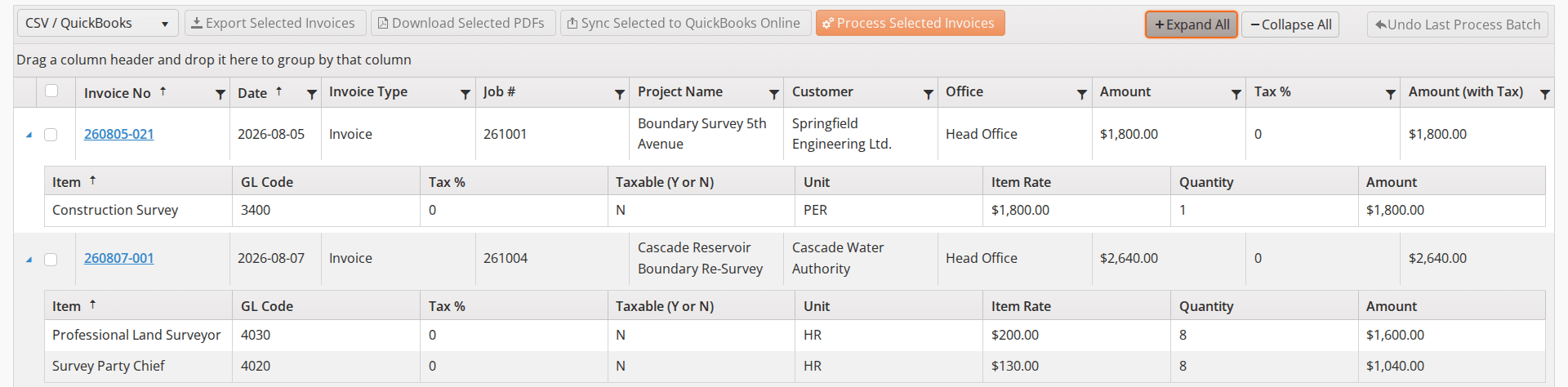
What the open row holds depends on the record: a DWR’s panel is described on DWR Approval, an invoice’s on Invoice Process Backlog.
An expense has no line items, so the Expense Approval Backlog has no triangle and no Expand All.
Undoing the last batch
Undo Last Approval Batch and Undo Last Process Batch reverse the last batch you ran on that backlog, all of its rows at once. A confirmation shows how many records are about to come back; click OK and they return to the backlog. The button is greyed until you have run a batch. The DWR Invoice Backlog has no undo button; its page says what to do instead.
Last updated