

Job Reports
The reports every job carries (the Job Charge-Out Rate Report, the Summary Report and the History Report) and the Create Invoice action beside them.
Key Concepts
Every job carries the same reports, and a job you can bill carries one more action beside them. The reports read the Daily Work Records (DWRs), budget line items and invoices already recorded against the job, so opening one changes nothing. They are the job’s cost reports: what was budgeted, worked and invoiced.
- The Job Charge-Out Rate Report shows all DWR and invoice activity.
- The Summary Report combines all line items so you can compare budgeted amounts, DWRs and invoices.
- The History Report lists every line item linked to a job, including assets and notes.
- Create Invoice starts the billing for the job. It is the only one of the four that leads to a change.
The same reports open from three places:
- the Actions column of the Active Job Dashboard: on the dashboard, in the Jobs card, click Active Job Dashboard;
- the Reports column of the Job Explorer: on the dashboard, in the Job Maps card, click Job Explorer;
- the Reports row at the top of a job’s display view, just above Job Number.
On the Active Job Dashboard the four sit in the Actions column as icons, so hover one to read its title: Job Charge-Out Rate Report, Summary Report, History Report and Create Invoice. Create Invoice is there and nowhere else. The Job Explorer’s Reports column carries the reports as icons titled Charge-Out Rate, Summary and History; a job’s Reports row carries them as text buttons reading Job Charge-Out Rate Report, Summary Report and History Report.

Each report is headed with its own name and the job number, and two of those headings are longer than the button you clicked: Summary Report opens a screen headed Job Charge-Out Rate Summary Report: 261002, and History Report opens Job History Report: 261002.
The reports share the same controls above the grid. Export to Excel downloads what is in the grid, a grouping bar reading “Drag a column header and drop it here to group by that column” sits above the column headers, and every column header carries a funnel filter icon. The funnel opens the same Filter panel, with the same operators, that the Report Grids reach through their column menu, and sorting, grouping and Export to Excel work as they do there. There is no column menu and no template toolbar, so there is no Columns checklist and no layout to save.
Job Charge-Out Rate Report
There is one row per DWR line item, with the invoice line that billed it alongside, so the columns split in two:
- the DWR side: Date, DWR #, DWR Line Item, DWR Unit, DWR Qty and DWR Amount;
- the invoice side: Inv Date, Inv #, Inv Line Item, Inv Unit, Inv Qty and Inv Amount.
DWR # and Inv # are links to the record they name. Job 261002 below has five DWR lines, every one of them billed on invoice 260805-020.
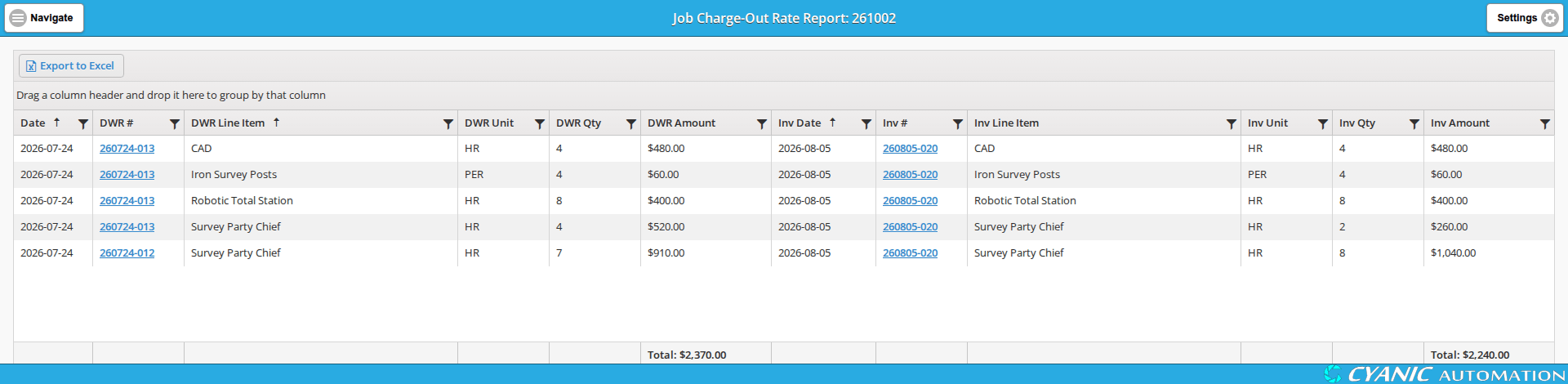
A quantity does not have to be billed as it was recorded. In the capture above, four hours of Survey Party Chief on DWR 260724-013 went out as two, and seven hours on DWR 260724-012 went out as eight.
A Total: sits at the foot of DWR Amount and of Inv Amount, so the gap between what has been recorded and what has been billed is one line at the bottom of the screen: $2,370.00 recorded against $2,240.00 billed.
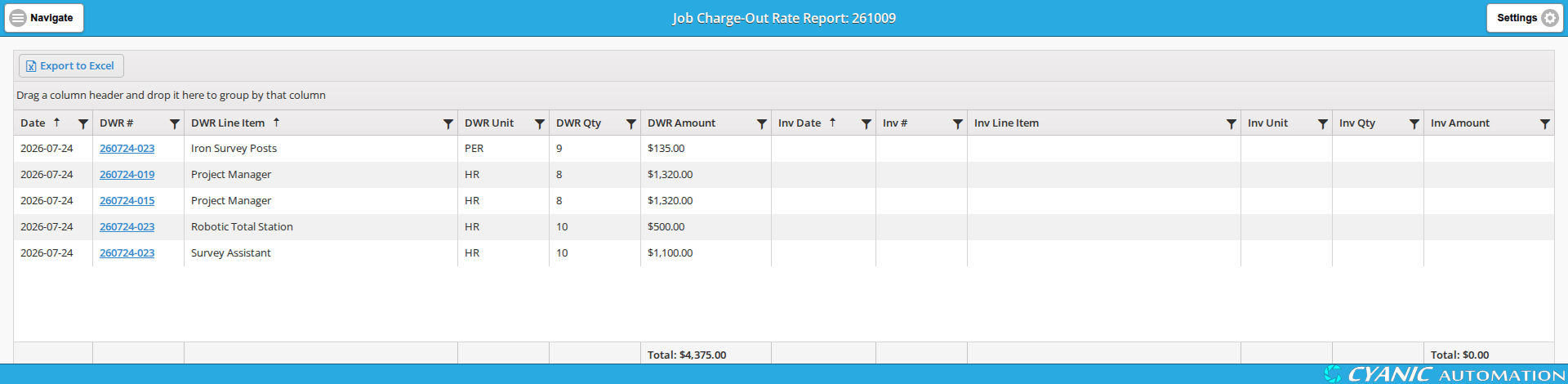
Blank invoice columns mean that DWR line has not been billed yet.
Job Charge-Out Rate Summary Report
It is the only one of the three with a date range. From and To sit above the grid with a Load Data button, and both are already filled in (a year back to today), so widen From if you want older work, then click Load Data.
There is one row per job line item, including budget lines nothing has been recorded against yet. The columns are:
- Line Item and Unit: the billable line item on the job, and how it is measured.
- Budget Qty and Budget Amount: what the job was set up with.
- Budget / DWR Qty Delta: Budget Qty minus DWR Qty. A negative number means more has been recorded than was budgeted. The column stays empty on a line with no DWRs against it.
- DWR Qty and DWR Amount: what has been recorded.
- Invoice Qty and Invoice Amount: what has been billed.
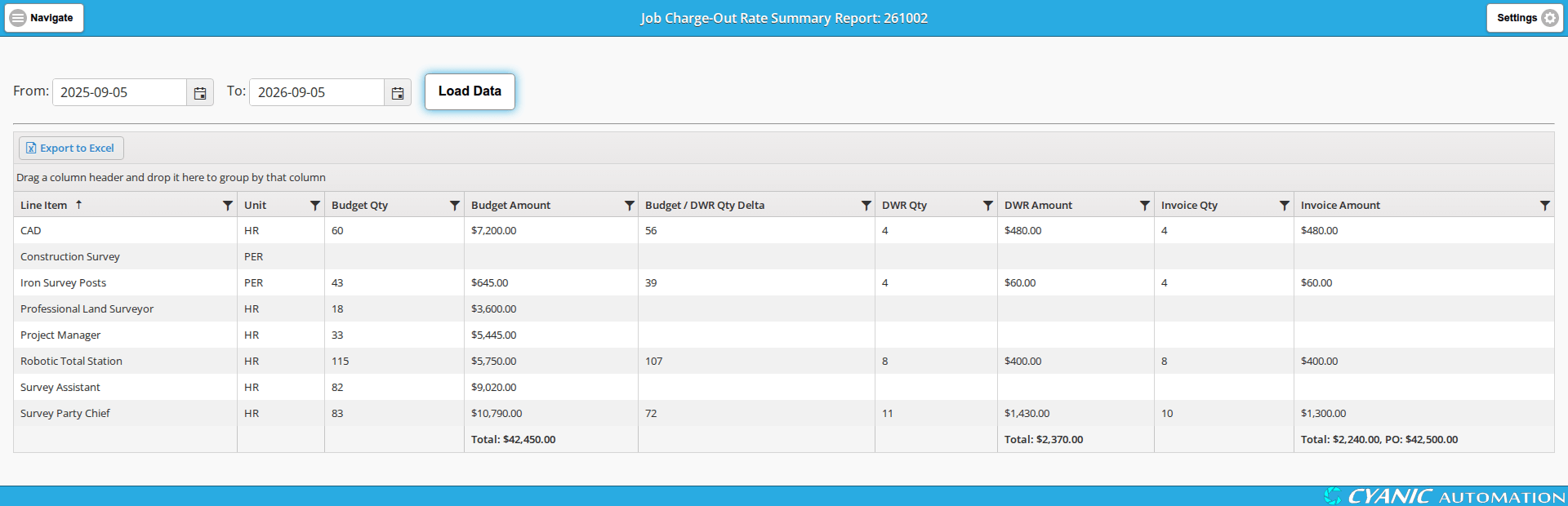
The row across the foot of the grid totals Budget Amount, DWR Amount and Invoice Amount, and the invoice total carries the job’s PO amount after it: Total: $2,240.00, PO: $42,500.00. Budgeted, recorded, billed and approved all read off one line.
Job History Report
There is one row per line recorded against the job, whichever DWR it came from, with the columns Date, Line Item, Type, DWR #, Employee, Quantity, Unit, DWR Status and Description.
- Type separates labour from the rest: Labour for a person’s hours, Other for equipment and materials.
- Employee is filled in on Labour rows only.
- DWR Status is the status of the DWR the line came from, so PM Approved is work the job’s project manager has already signed off.
- Description carries the note typed on the DWR line.
- Date is a link to the record.
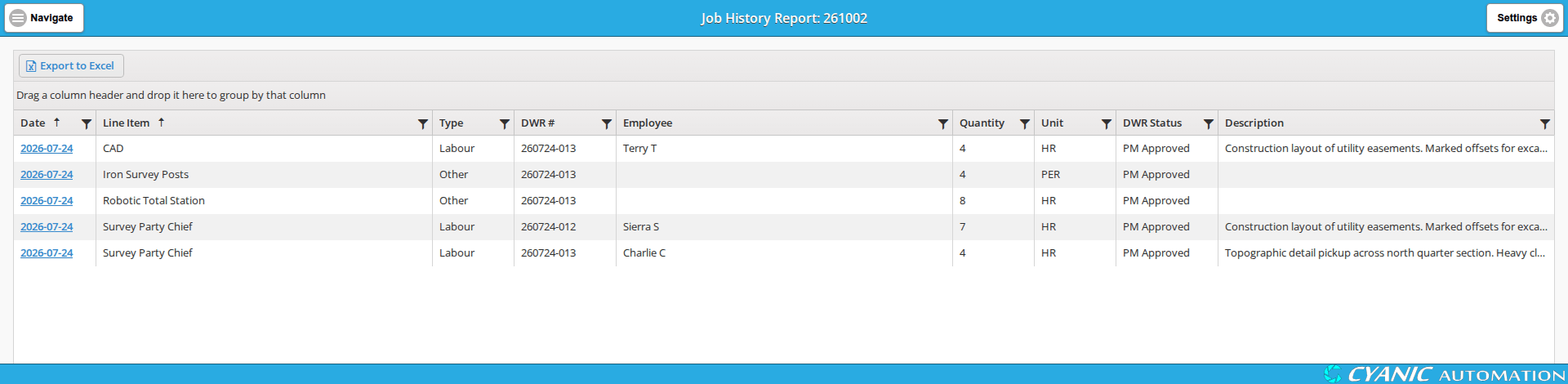
There are no money columns and no totals row.
Creating an invoice from a job
Create Invoice is the fourth button in the Actions column of the Active Job Dashboard. Where it takes you depends on the job’s DWR Billing Type:
- Fixed Price: a new invoice form opens for the job with the job’s PO Amount already in Total:. See Invoicing a Fixed Price Job.
- Time & Materials: the DWR Invoice Backlog opens filtered to that job, so you pick which DWRs to bill. See Invoicing a Time & Materials Job.
- Non-Chargeable and Overhead: there is no button. Those jobs cannot be invoiced this way, so their Actions column holds the three reports only.
Video
 Coming soon
 Last updated