

Safety
The Safety form types in Job Book: the safety dashboard, each list and its saved views, and the fields on each blank form.
Key Concepts
Safety is a group of ten separate form types, the company’s health and safety (HSE) paperwork. Each one has its own list and its own blank form, and they are all reached the same way: from the safety dashboard, or from the Safety group in the Navigate menu.
- Safety (dashboard card) has the links Hazards / Tailgate Create, Hazards / Tailgate Explore and More…. The card’s help tooltip reads “Navigate to the safety dashboard”.
- safety dashboard: the screen behind More…. It shows one card per form type, each with Create New and Explore.
- saved view: the buttons along the top of a list, such as Submitted, My Forms and All. Clicking one changes which records the list shows.
- Create New: the blank form. Explore: the list.
The Navigate menu’s Safety group lists every form type: Employee Incident Reports, Hazard Assessments / Tailgate Meetings, Hazard Near Miss Reports, HSE Inspection Forms, Light Vehicle Inspection, Policy Documentation, Training Records, Unsafe Work Refusal Forms, Witness Statements and Worksite Observation Audits.
One form type, three labels
The Hazards / Tailgate form is named differently in three places, and the differences include the spacing:
- the dashboard card’s links say Hazards / Tailgate Create and Hazards / Tailgate Explore;
- the Navigate menu and the form’s own screen title say Hazard Assessments / Tailgate Meetings;
- the safety dashboard’s card says Hazards/Tailgate Meetings, with no spaces around the slash.
Worksite Observation Audits drifts too: the Navigate menu and the screen title say Worksite Observation Audits, while the safety dashboard’s card says Worksite Observations.
Who can use Safety
A Technician can see and fill in their own Safety forms, a Manager and an Administrator everyone’s. A Job Coordinator on their own has no access to Safety and no Safety card; see Users and Employee Profiles.
Performing Common Tasks
Opening the safety dashboard
On the dashboard, in the Safety card, click More….
The safety dashboard opens with a card for each form type, five to a row, each carrying the form type’s name, an icon, and the links Create New and Explore.
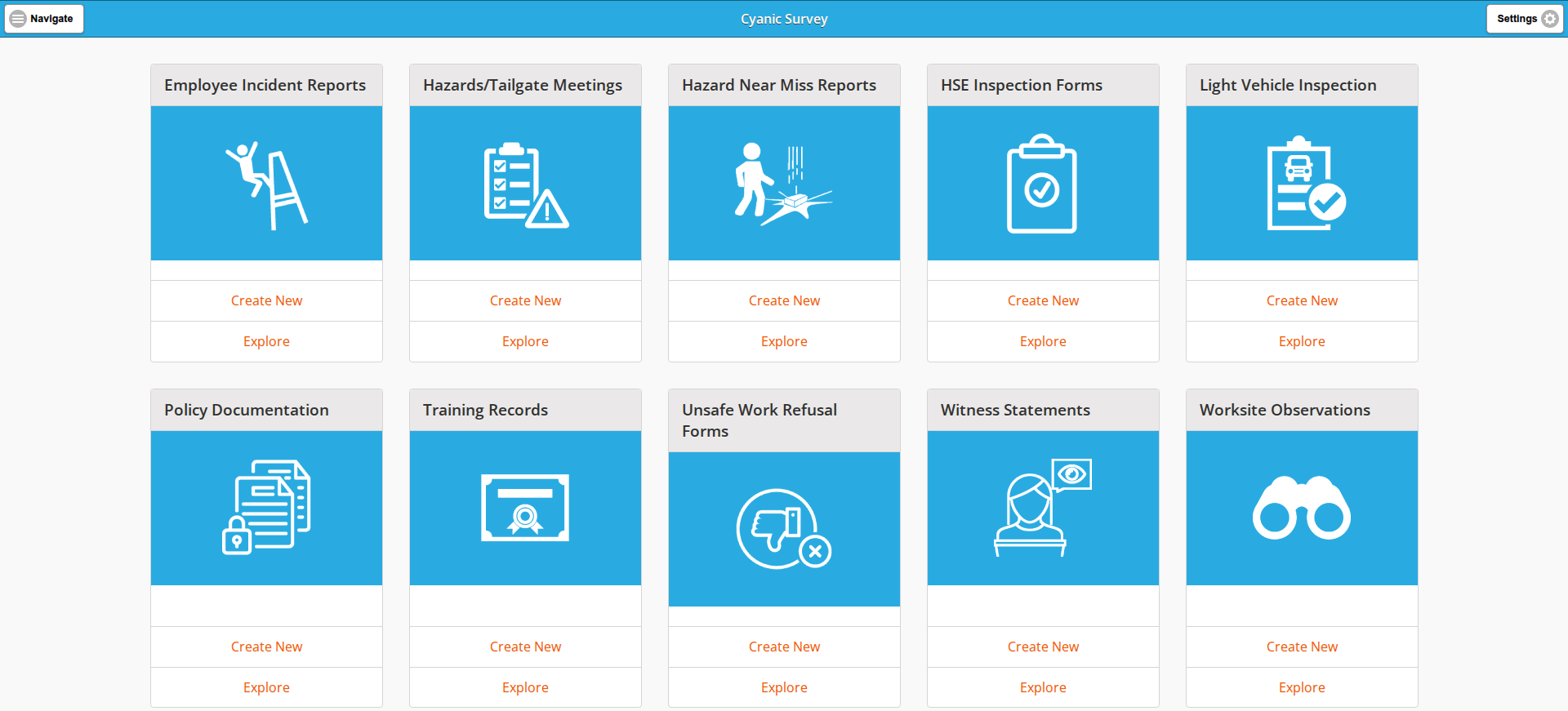
You can also reach any one form type directly: click Navigate, expand the Safety group, then click the form type you want.
Opening a form’s list
On the safety dashboard, click Explore on the form type’s card, or click Navigate, expand Safety and click the form type.
Nine of the ten lists share the same layout:
- the saved views run along the top, with the first one selected;
- a search box reading “Type and press Enter to search”, with a Search button beside it;
- a Create button and an Export to Excel button;
- the records themselves, or No records to display when the selected view is empty.

Policy Documentation is the exception, with one saved view and a grid instead of cards; see Policy Documentation.
Creating a form
- Open the blank form: on the safety dashboard click Create New on the form type’s card, or open the list and click Create.
- The screen keeps the form type’s name in the title bar and is headed Create.
- Fill in the fields. A red asterisk beside a label marks the field as required.
- Some labels have an Add button under them and nothing else: Crew:, Witnesses:, Inspection Team:, Observations:, Revision History:, Other:, Body Condition Photos: and Attachments:. On a blank form these hold no entries yet.
- Every form but Policy Documentation and Witness Statements carries Attachments: with an Add button.
- Every form but Policy Documentation, Training Records and Worksite Observation Audits carries one or more signature blocks. A block is a heading naming who signs, then Signature: with the buttons Add My Signature and Collect Signature, and on most forms a Name: drop-down under them for picking who signed.
- Most forms end with a Reviewed tick box, a signal that a safety officer has looked the form over; ticking it changes nothing else. Training Records has Archived instead, and Policy Documentation has neither.
- Click Save to keep the form, or Cancel to leave without saving.
- Saving submits the form. There is no separate submit step, so a new form is on the Submitted view as soon as it is saved.
Employee Incident Reports
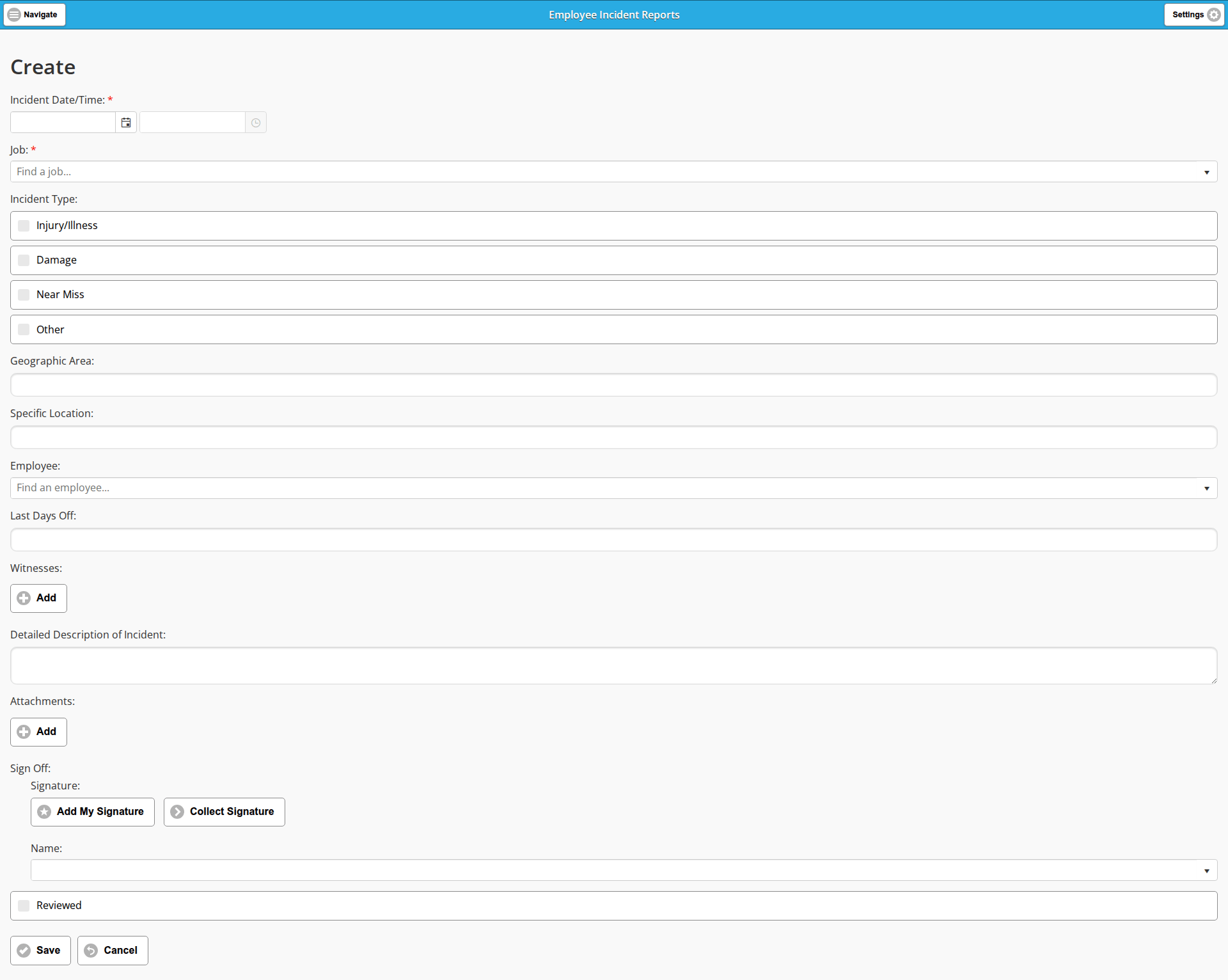
The list is titled Employee Incident Reports and has the saved views Submitted, My Forms and All.
The blank form has these fields, in order:
- Incident Date/Time: required; a date box and a time box.
- Job: required; a search box for finding a job.
- Incident Type: tick boxes for Injury/Illness, Damage, Near Miss and Other.
- Geographic Area:
- Specific Location:
- Employee: a search box for finding an employee.
- Last Days Off:
- Witnesses: an Add button.
- Detailed Description of Incident:
- Attachments: an Add button.
- Sign Off: Signature: with Add My Signature and Collect Signature, then Name:.
- Reviewed: a tick box.
Hazard Assessments / Tailgate Meetings
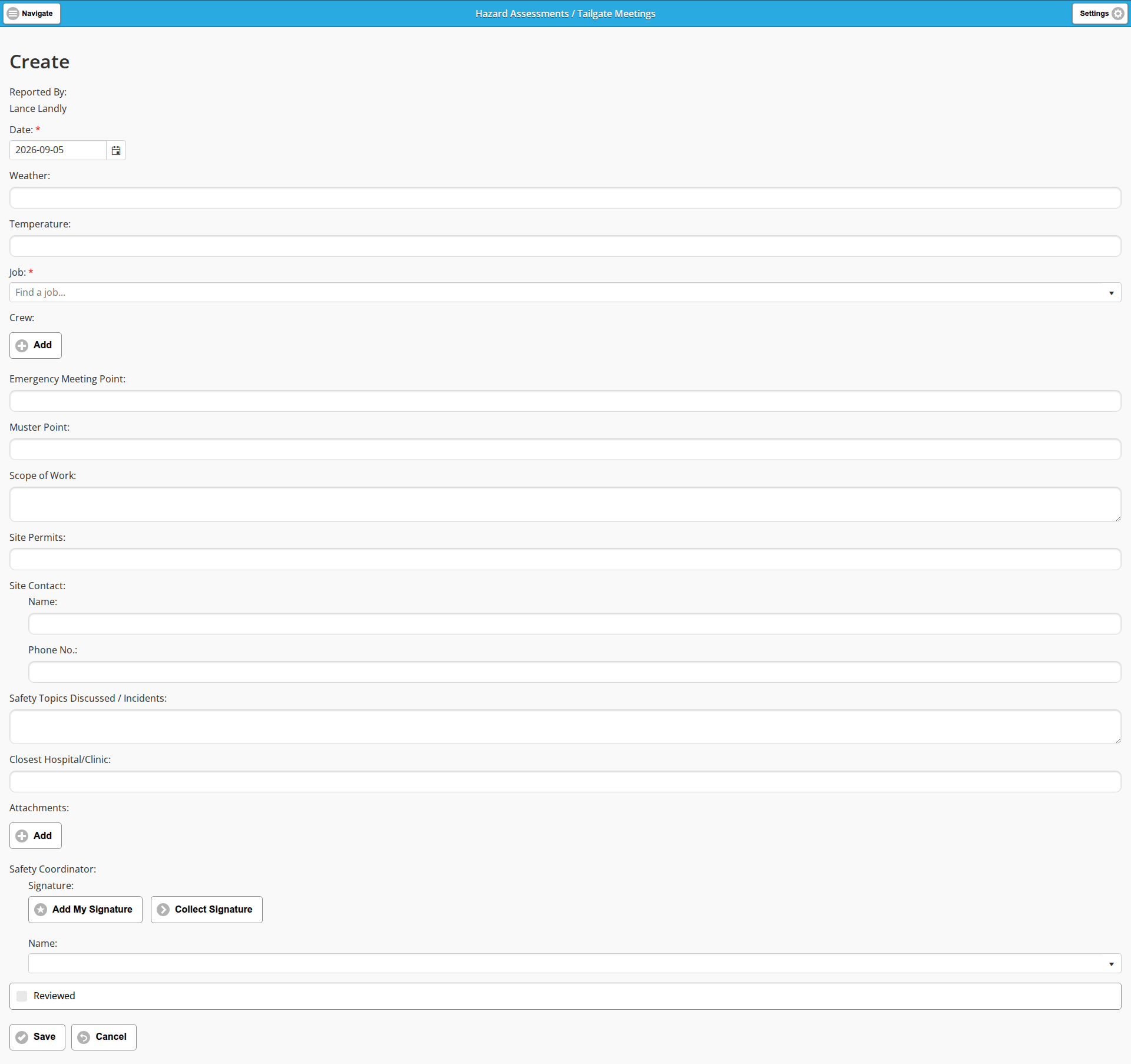
This is the form type the Safety card’s own links open, under the names set out in One form type, three labels. Its list is titled Hazard Assessments / Tailgate Meetings and has the saved views Submitted, My Forms and All.
The blank form has these fields, in order:
- Reported By: shown as read-only text, filled in with the name of whoever opened the form.
- Date: required; already set to today’s date.
- Weather:
- Temperature:
- Job: required; a search box for finding a job.
- Crew: an Add button.
- Emergency Meeting Point:
- Muster Point:
- Scope of Work:
- Site Permits:
- Site Contact: Name: and Phone No.:.
- Safety Topics Discussed / Incidents:
- Closest Hospital/Clinic:
- Attachments: an Add button.
- Safety Coordinator: Signature: with Add My Signature and Collect Signature, then Name:.
- Reviewed: a tick box.
Hazard Near Miss Reports
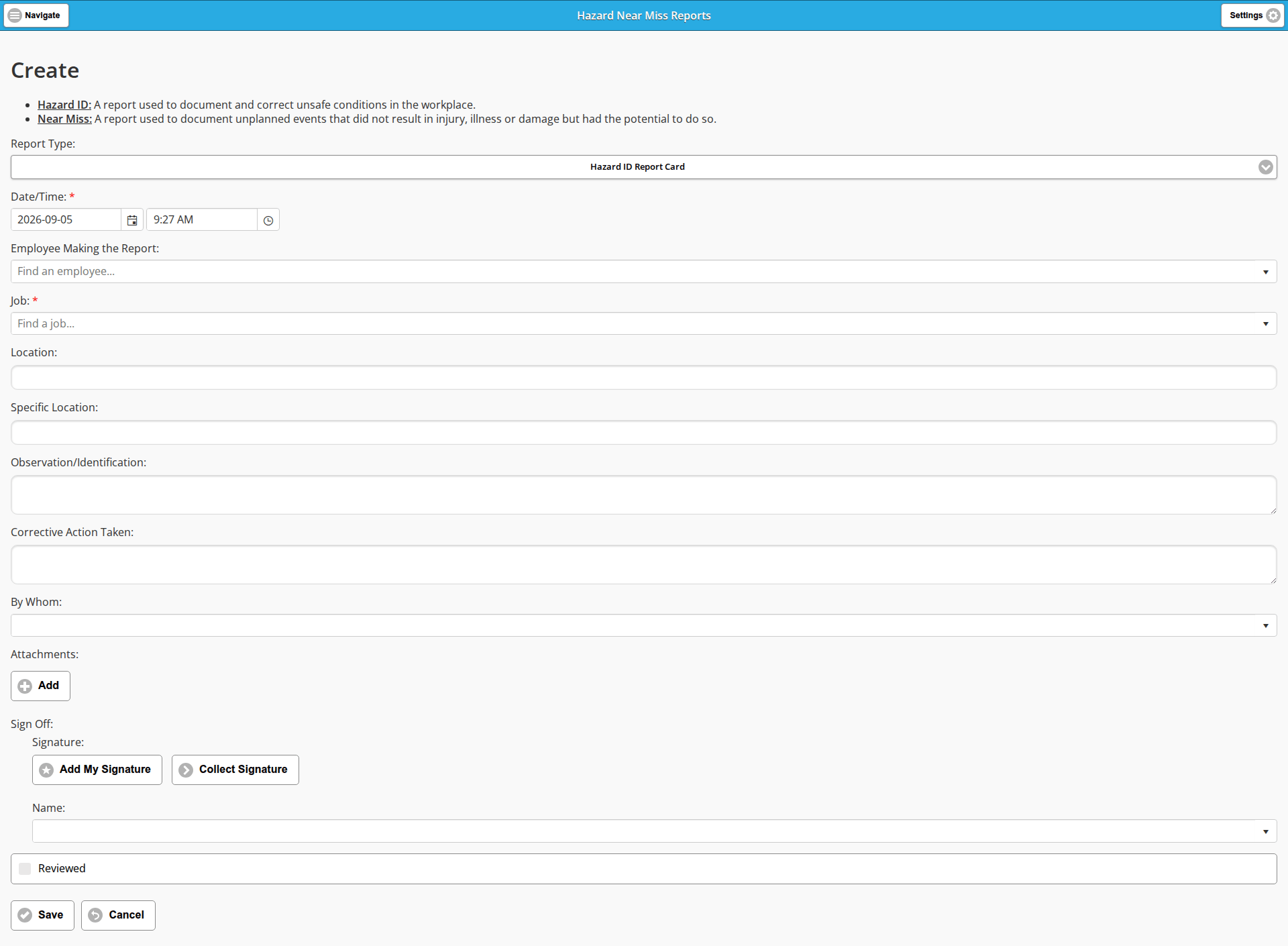
The list is titled Hazard Near Miss Reports and has the saved views Submitted, My Forms and All.
The blank form opens with two definitions printed on the screen:
- Hazard ID: A report used to document and correct unsafe conditions in the workplace.
- Near Miss: A report used to document unplanned events that did not result in injury, illness or damage but had the potential to do so.
Below them are these fields, in order:
- Report Type: a drop-down, set to Hazard ID Report Card when the form opens. The choices are Hazard ID Report Card, Near Miss Report Card, Positive Observation and Environmental Report Card.
- Date/Time: required; already set to the current date and time.
- Employee Making the Report: a search box for finding an employee.
- Job: required; a search box for finding a job.
- Location:
- Specific Location:
- Observation/Identification:
- Corrective Action Taken:
- By Whom: a drop-down.
- Attachments: an Add button.
- Sign Off: Signature: with Add My Signature and Collect Signature, then Name:.
- Reviewed: a tick box.
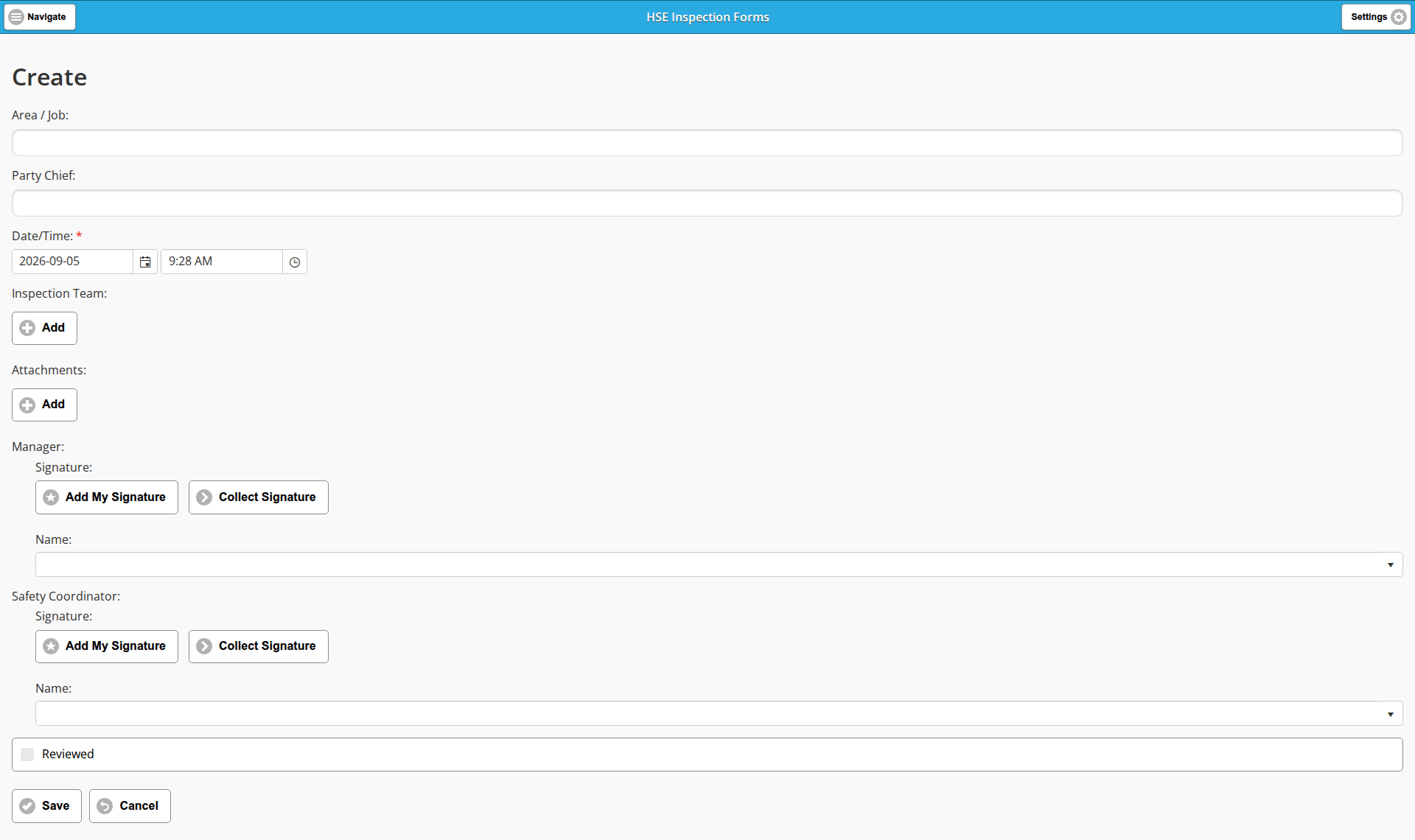
HSE Inspection Forms
The list is titled HSE Inspection Forms and has the saved views Submitted, My Forms and All.
This is the only Safety form with two signature blocks that each have a Name: box. Its fields, in order:
- Area / Job:
- Party Chief:
- Date/Time: required; already set to the current date and time.
- Inspection Team: an Add button.
- Attachments: an Add button.
- Manager: Signature: with Add My Signature and Collect Signature, then Name:.
- Safety Coordinator: a second Signature: with the same two buttons, then Name:.
- Reviewed: a tick box.
Light Vehicle Inspection
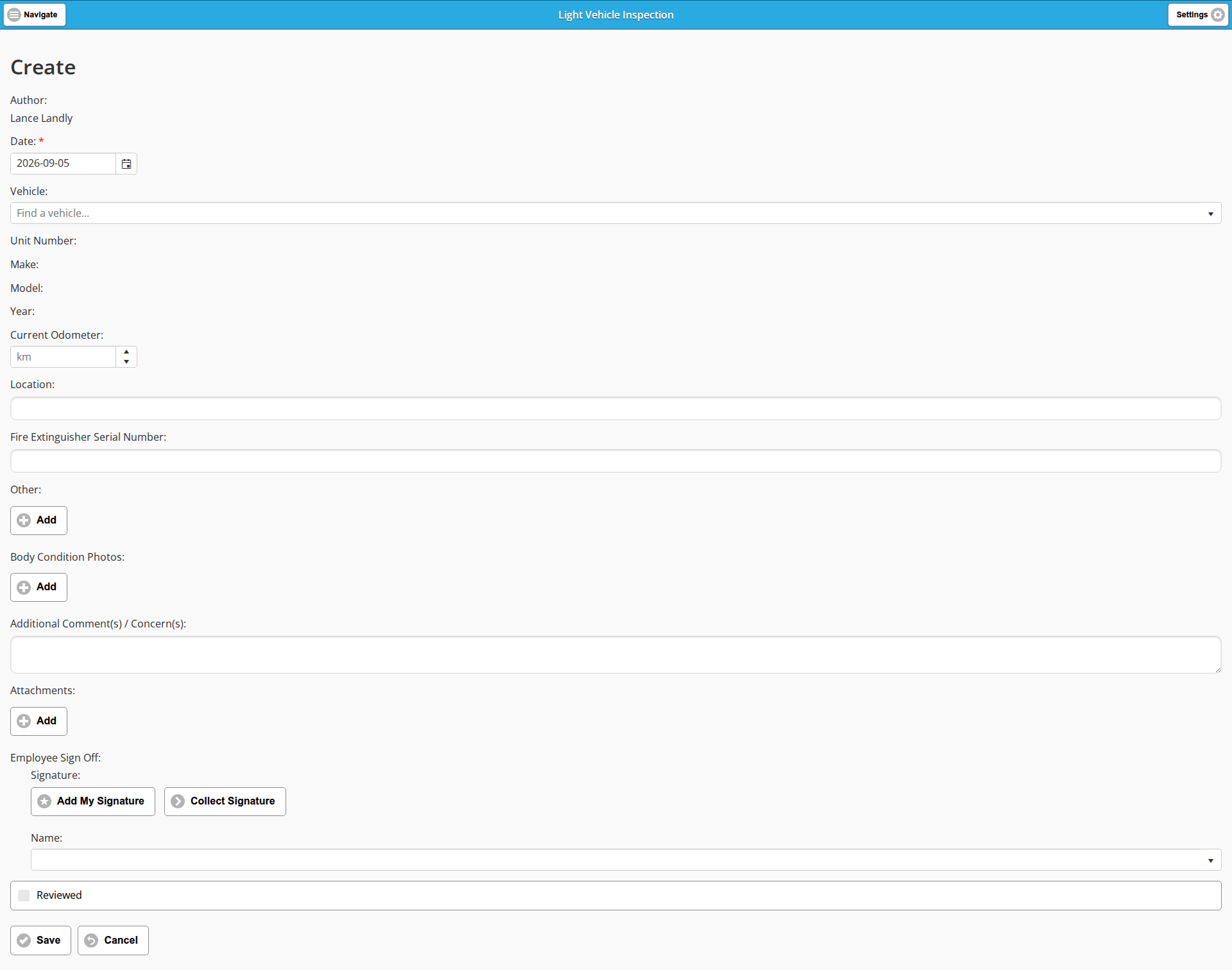
The list is titled Light Vehicle Inspection and is the only Safety list with five saved views: Submitted, All, Current, My Forms and All My Forms.
The blank form has these fields, in order:
- Author: shown as read-only text, filled in with the name of whoever opened the form.
- Date: required; already set to today’s date.
- Vehicle: a search box for finding a vehicle, from the Vehicles list under Administration.
- Unit Number:, Make:, Model:, Year: labels with no box beside them on a blank form.
- Current Odometer: a number box marked “km”.
- Location:
- Fire Extinguisher Serial Number:
- Other: an Add button.
- Body Condition Photos: an Add button.
- Additional Comment(s) / Concern(s):
- Attachments: an Add button.
- Employee Sign Off: Signature: with Add My Signature and Collect Signature, then Name:.
- Reviewed: a tick box.
Policy Documentation
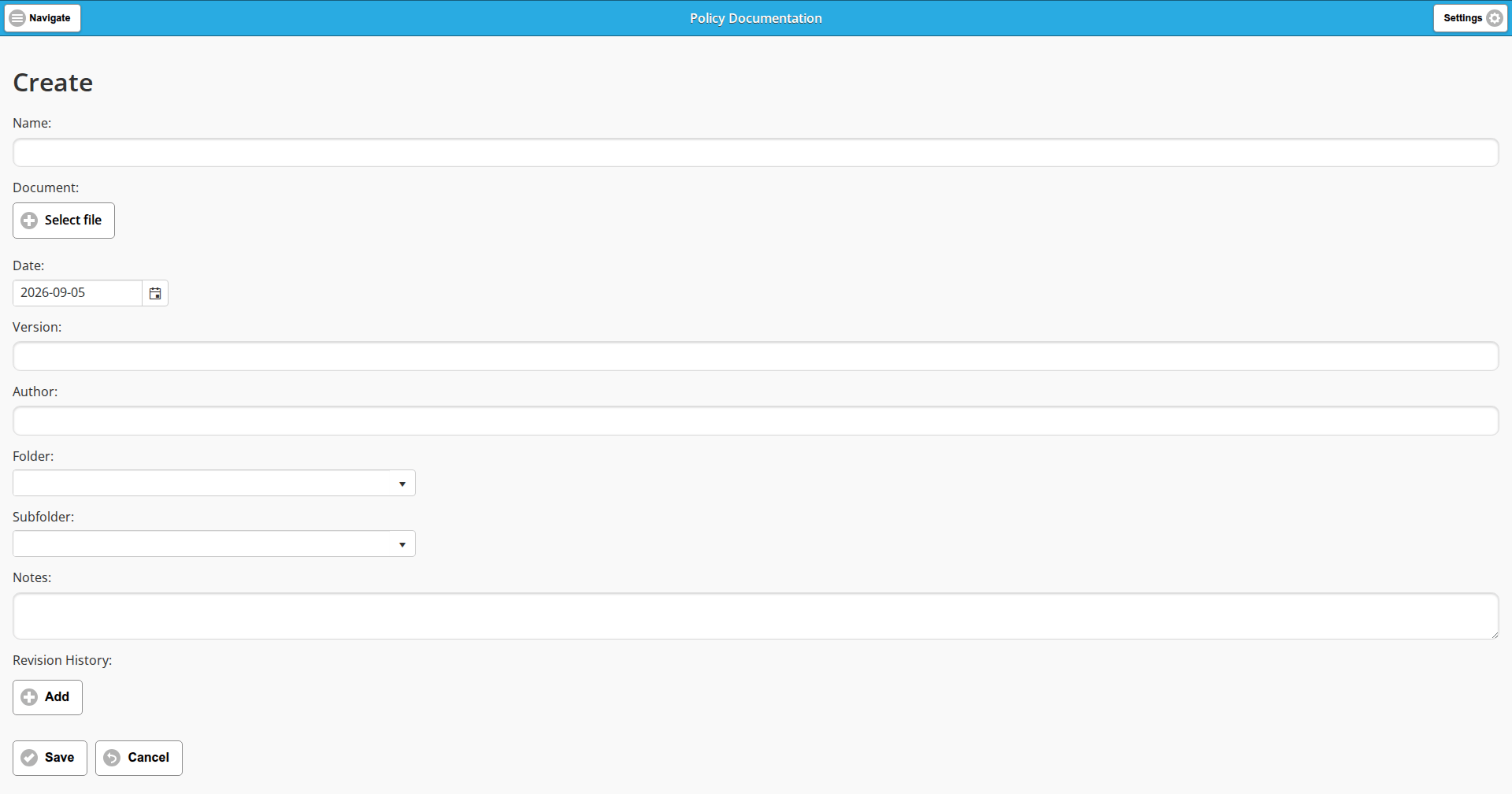
Policy Documentation is the odd one out at both ends. Its list is titled Policy Documentation, has a single saved view, All, and shows a grid with a Name column rather than cards. Its search box has no Search button, and the Create and Export to Excel buttons sit above the grid as on every other Safety list.
The blank form has no signature control, no Attachments: block, and no tick box at the end. Its fields, in order:
- Name:
- Document: a Select file button.
- Date: already set to today’s date.
- Version:
- Author:
- Folder: a drop-down.
- Subfolder: a drop-down.
- Notes:
- Revision History: an Add button.
Training Records
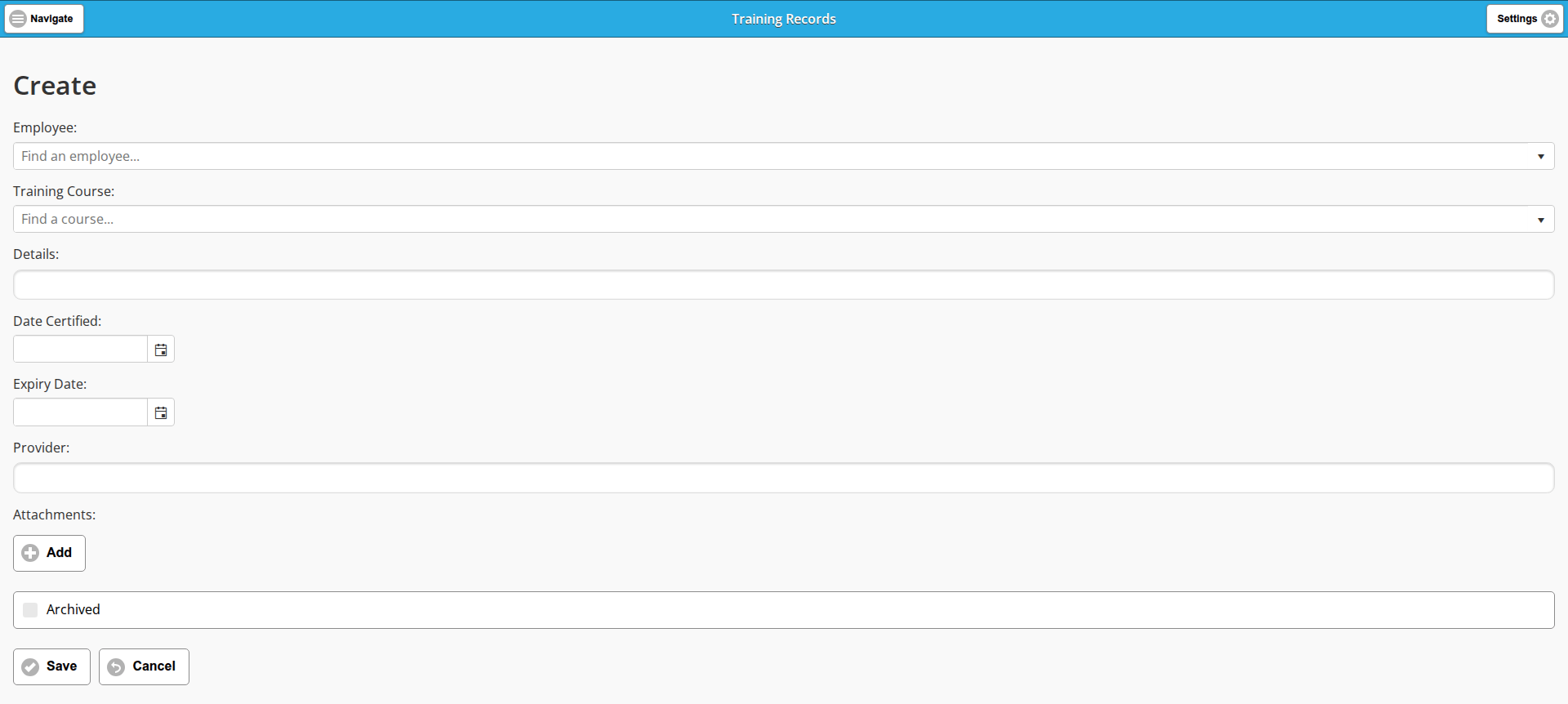
The list is titled Training Records and has a different set of saved views from the rest: Current, Expires in 6 months and All. Expires in 6 months is on no other Safety list.
The blank form has no signature control. Its fields, in order:
- Employee: a search box for finding an employee.
- Training Course: a search box for finding a training course, from the Training Courses list under Administration.
- Details:
- Date Certified:
- Expiry Date:
- Provider:
- Attachments: an Add button.
- Archived: a tick box. This is the only Safety form whose closing tick box is not Reviewed.
Unsafe Work Refusal Forms
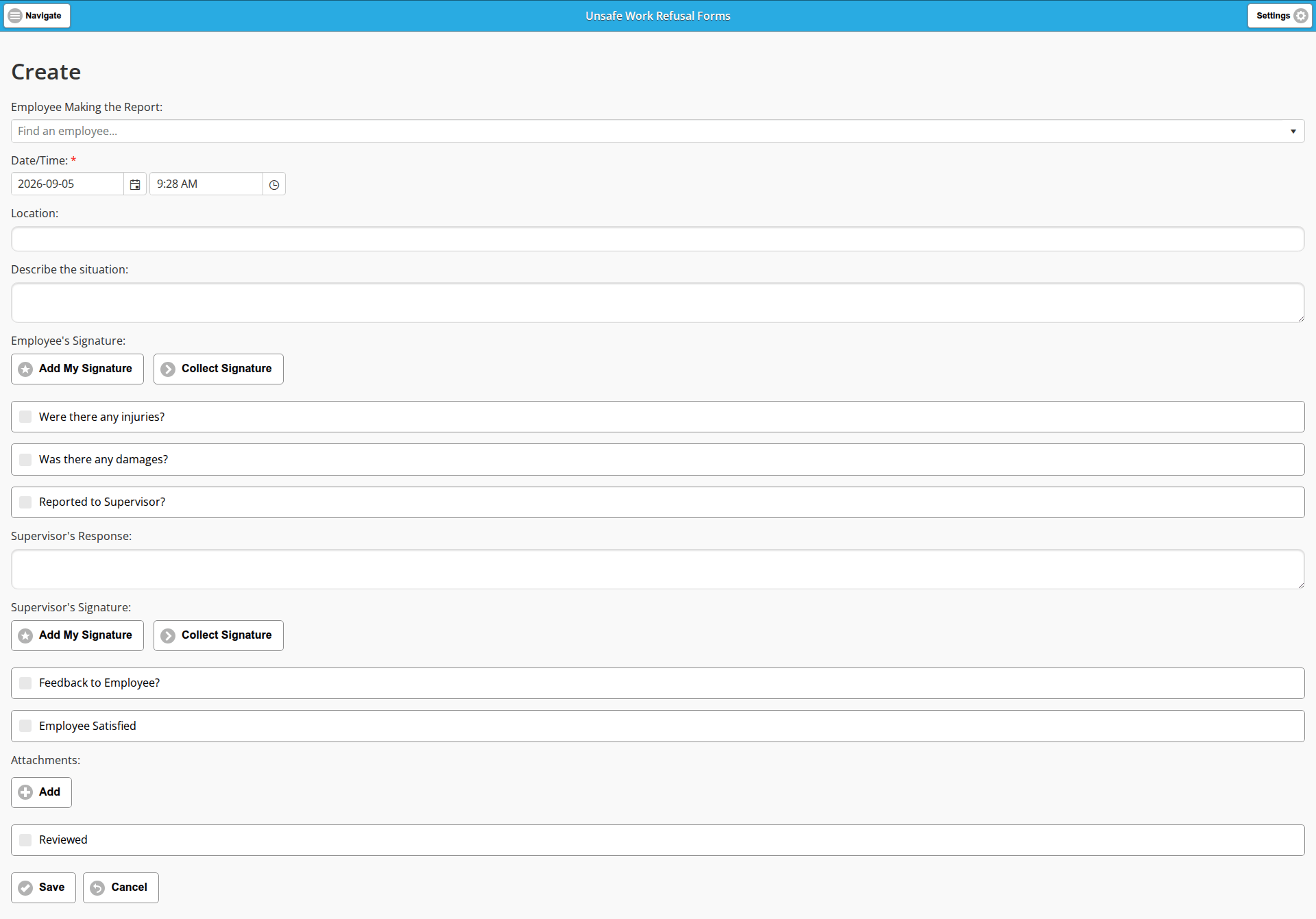
The list is titled Unsafe Work Refusal Forms and has the saved views Submitted, My Forms and All.
The blank form has two signature blocks, an employee’s and a supervisor’s, in this field order:
- Employee Making the Report: a search box for finding an employee.
- Date/Time: required; already set to the current date and time.
- Location:
- Describe the situation:
- Employee’s Signature: Add My Signature and Collect Signature, with no Name: box.
- Were there any injuries?: a tick box.
- Was there any damages?: a tick box.
- Reported to Supervisor?: a tick box.
- Supervisor’s Response:
- Supervisor’s Signature: Add My Signature and Collect Signature, again with no Name: box.
- Feedback to Employee?: a tick box.
- Employee Satisfied: a tick box.
- Attachments: an Add button.
- Reviewed: a tick box.
Witness Statements
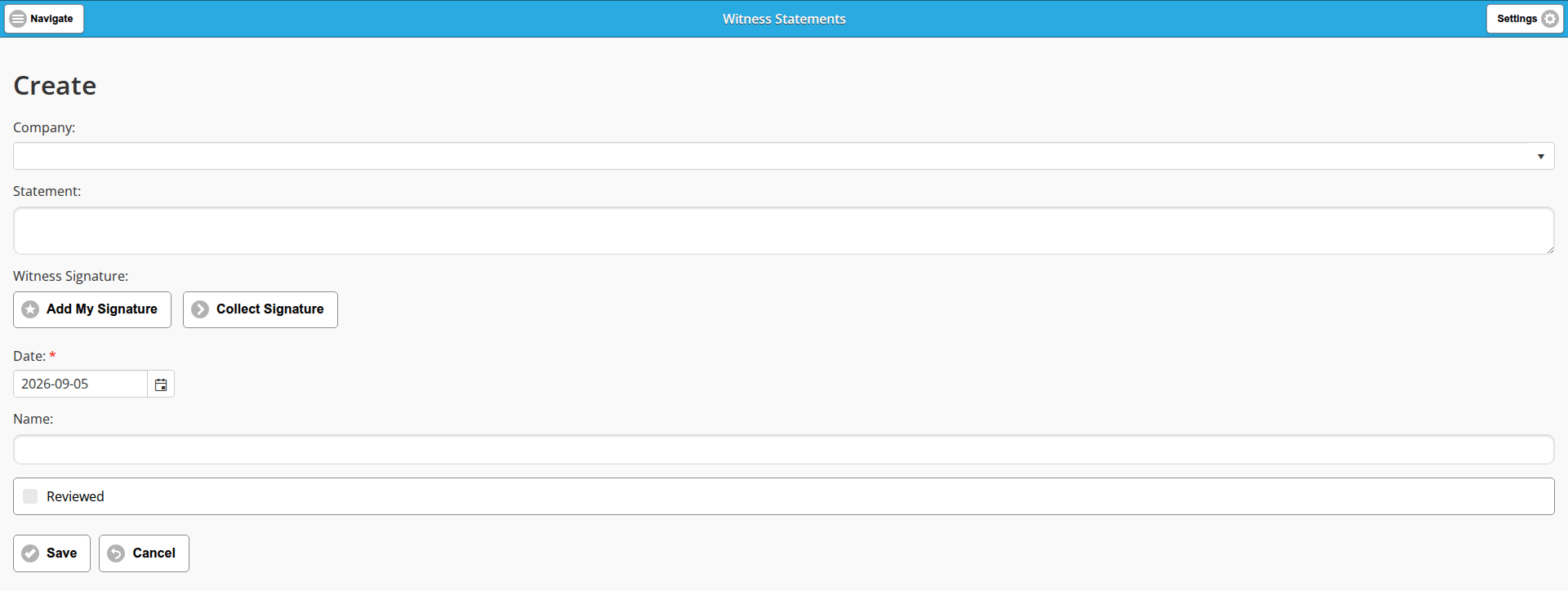
The list is titled Witness Statements and has the saved views Submitted, My Forms and All.
This is the shortest Safety form. It has no Attachments: block, and its Name: is a plain box rather than the drop-down that the other forms put under a signature. Its fields, in order:
- Company: a drop-down.
- Statement:
- Witness Signature: Add My Signature and Collect Signature.
- Date: required; already set to today’s date.
- Name:
- Reviewed: a tick box.
Worksite Observation Audits
The list is titled Worksite Observation Audits and has the saved views Submitted, My Forms and All.
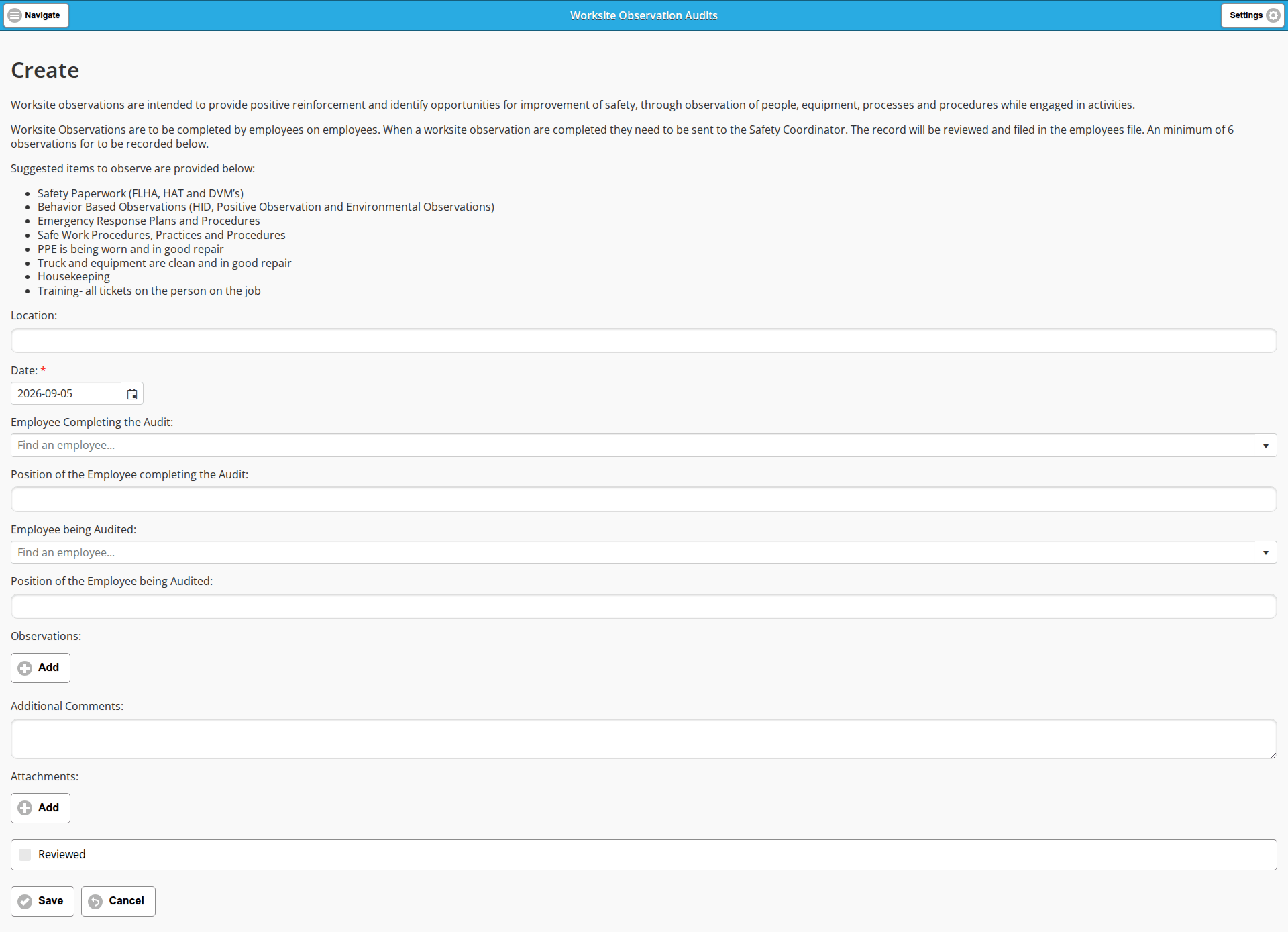
The blank form opens with a note on the screen. It says that worksite observations are meant to give positive reinforcement and find ways to improve safety, that employees complete them on other employees, that a completed record goes to the Safety Coordinator to be reviewed and filed in the employee’s file, and that at least six observations should be recorded. The note then lists suggested items to observe, in its own words:
- Safety Paperwork (FLHA, HAT and DVM’s)
- Behavior Based Observations (HID, Positive Observation and Environmental Observations)
- Emergency Response Plans and Procedures
- Safe Work Procedures, Practices and Procedures
- PPE is being worn and in good repair
- Truck and equipment are clean and in good repair
- Housekeeping
- Training- all tickets on the person on the job
Below the note are these fields, in order:
- Location:
- Date: required; already set to today’s date.
- Employee Completing the Audit: a search box for finding an employee.
- Position of the Employee completing the Audit:
- Employee being Audited: a search box for finding an employee.
- Position of the Employee being Audited:
- Observations: an Add button.
- Additional Comments:
- Attachments: an Add button.
- Reviewed: a tick box.
Last updated