

Rate Sheets
How to open the Rate Sheets list, read a rate sheet, build one from your line items on the Labour Costs, Equipment and Materials and Fixed Price tabs, and apply it to a client or a job.
Key Concepts
A rate sheet is a price list: the charge-out rates for your labour, equipment and materials. In Job Book it is a set of line items and their prices, saved under a name. The prices you set for the individual line items can be overwritten in the rate sheet, so you can price the same items differently for different clients or contract types without recreating them. What rate sheets do for your pricing is on the Rate Sheets product page; this page is how to build one.
For example, a customer might have negotiated a set price for the line items you will charge them. You can create a rate sheet specifically for that customer and apply it to all the jobs that you do for them, and any work done for those jobs will be billed out at that special rate-sheet price.
- Billable Line Items: the body of the rate sheet, on the tabs Labour Costs, Equipment and Materials and Fixed Price. They correspond to the three collections of line items you set up in Administration Settings.
- Naming: name a rate sheet for what it covers, so you can tell it apart in the picker on a client or a job. Sheets are typically named for a job type (Subdivision Survey, Boundary Survey), for a client (City of Springfield), or for a contract (Bechtel Contract #783CS1872), with one baseline sheet called Standard Rates. Where prices are renegotiated every year, a common pattern is to put the year in the name (2026 Standard Rate Sheet, 2025 Standard Rate Sheet) and keep the older sheets alongside it.
Creating rate sheets is an Administrator job.
Performing Common Tasks
Opening the Rate Sheets list
On the dashboard, in the Rate Sheets card, click Explore. You can also click Navigate in the top-left corner, expand the Bidding group, then click Rate Sheets.
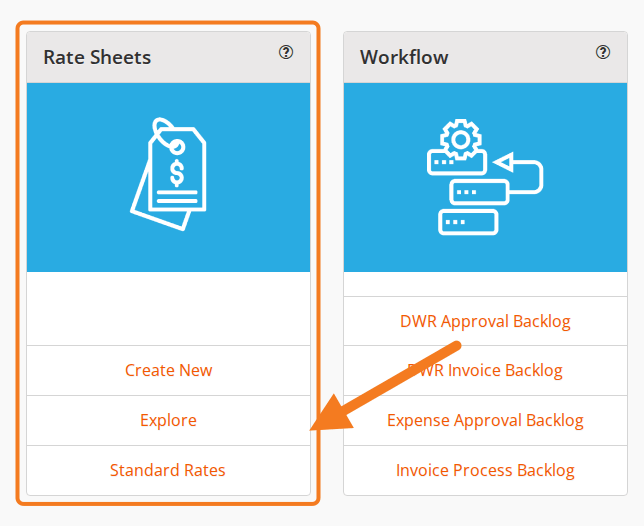
The list opens on the Active view.
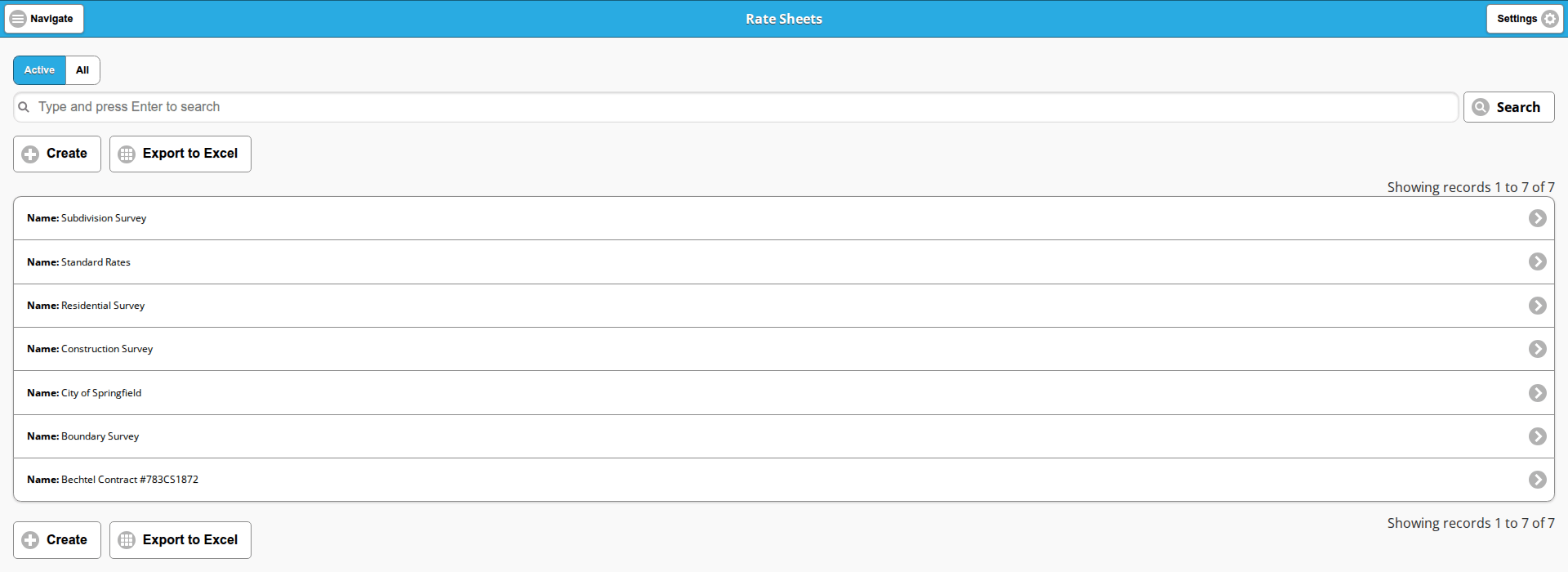
- Active shows the rate sheets still in use. Click All to see the active and inactive sheets together.
- Type into the search box, which reads “Type and press Enter to search”, and press Enter, or click Search, to narrow the list.
- Create opens a blank rate sheet form and Export to Excel downloads the list. Both buttons appear above and below the cards.
- Each card reads Name: followed by the rate sheet’s name. Click a card to open that rate sheet.
Viewing a rate sheet
Clicking a card opens its display view, which is read-only. The buttons above and below the record are Edit, Export to PDF, Clone, Delete and Back, which returns you to the list.
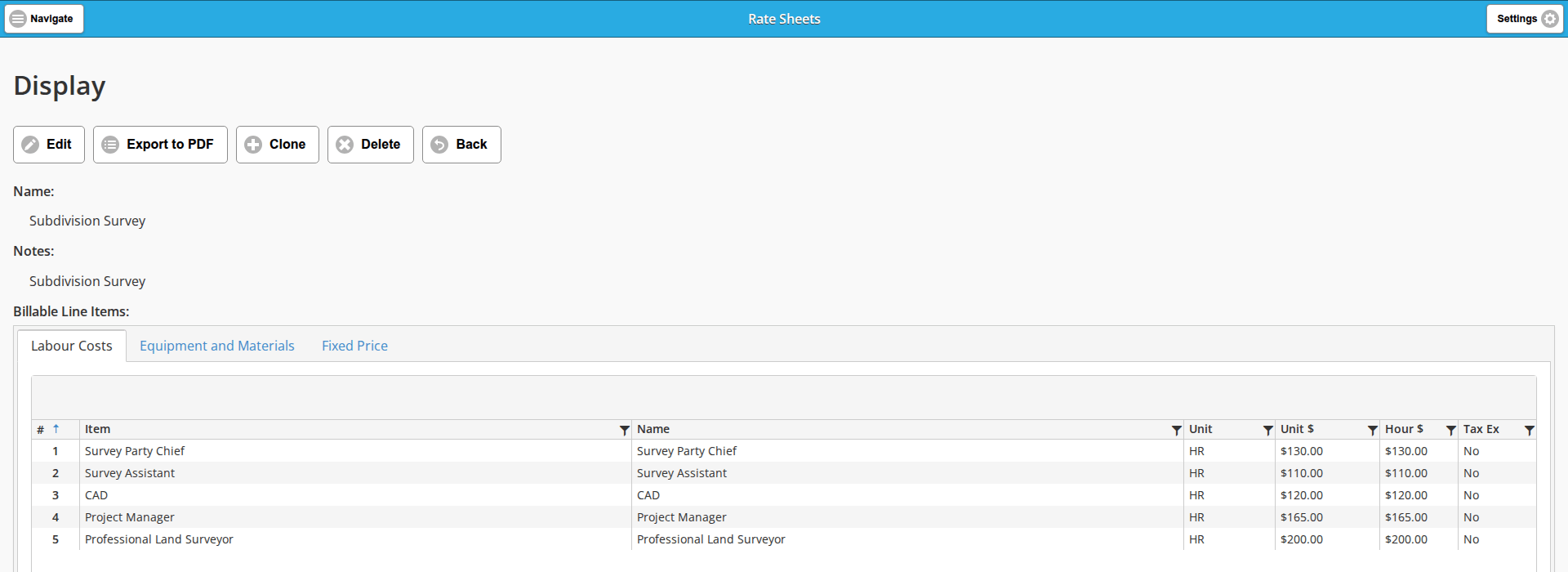
- Name and Notes are shown at the top.
- Billable Line Items: holds the three tabs. Each tab lists the line items on this sheet and the price the sheet gives them, in the columns described under Adding a line item.
- Every column carries a filter funnel and the # column sorts, so a long sheet can be narrowed to the item you are looking for.
- Active: at the bottom shows whether the rate sheet is still in use.
Creating a rate sheet
There are two ways in, and both do the same thing:
- On the dashboard, in the Rate Sheets card, click Create New.
- Click Navigate in the top-left corner, expand the Bidding group, click Rate Sheets, then click Create.
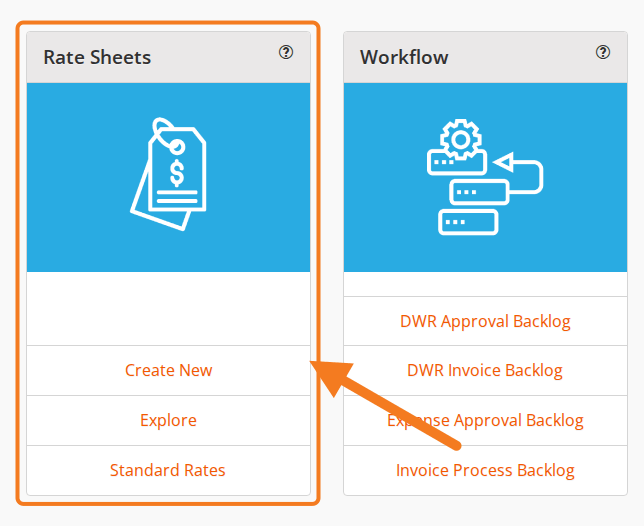
The form opens titled Create.
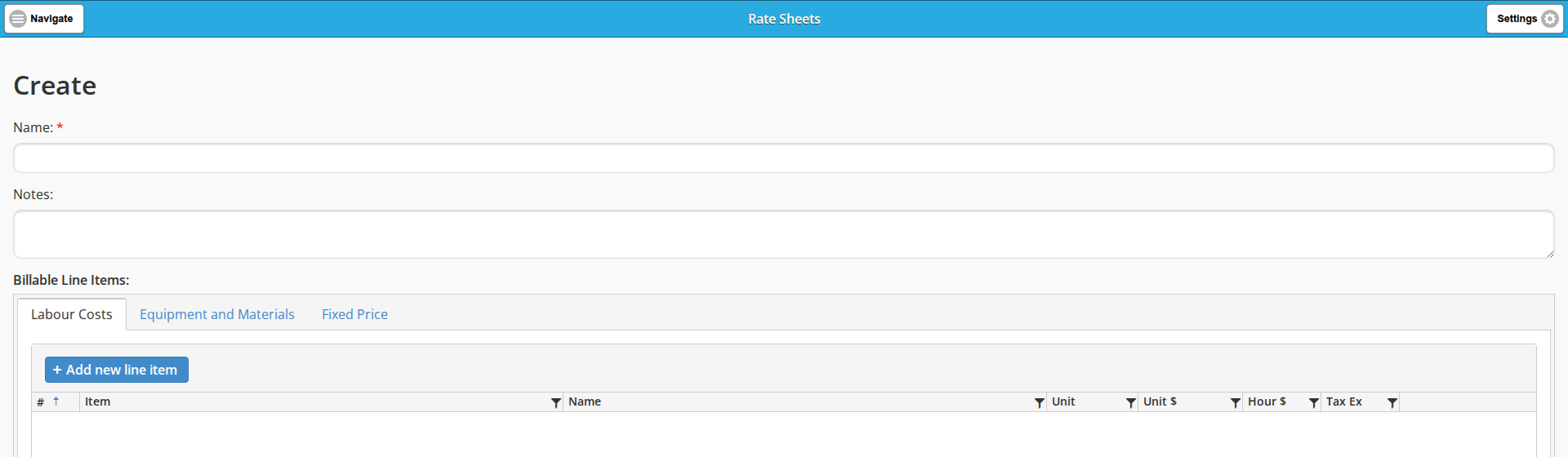
- Name: required, and marked with a red star. This is the name that appears in the list and in the pickers on a client and a job.
- Notes: free text.
- Billable Line Items: the tabs. Work through them and add whatever line items and rates you want on this sheet.
- Active: a checkbox below the tabs, ticked on a new rate sheet.
Click Save to create the rate sheet. Cancel leaves without saving.
Adding a line item
Start on the Labour Costs tab and click + Add new line item. A row opens for editing in the grid, and a note beside the button reads “Click Done to apply changes.”
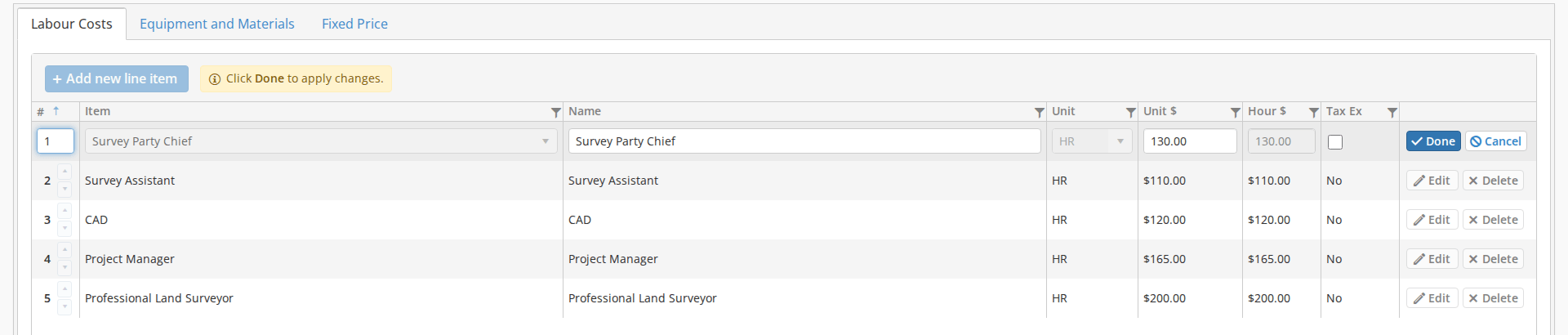
The row you are editing holds:
- #: the row’s position in the list.
- Item: the dropdown you pick an existing cost item from. The items are the ones set up under Labour Cost Items in Administration Settings.
- Name: the item’s name.
- Unit: the unit the item is measured in.
- Unit $: the price for one unit. This is the price you override.
- Hour $: the hourly cost, on the Labour Costs tab only.
- Tax Ex: a tax exempt checkbox.
- Done and Cancel at the right of the row. Click Done to apply the row.
The name, the unit, the unit cost, the hourly cost and tax exempt are all auto-populated from what you set up in the line item itself. When you create a rate sheet you can override that default price: if the item’s unit cost is $125 and you change it to $130 on this sheet, then when you use this rate sheet on a job the price for that item defaults to $130.
Rows already on the sheet carry Edit and Delete buttons at their right, and arrows beside the # column to move a row up or down.
The other two tabs
Click the Equipment and Materials tab and add items the same way: + Add new line item, pick the item, adjust the price, click Done.

The row is the same without Hour $, and the items you can pick are the ones set up under Equipment and Materials in Administration Settings.
The third tab, Fixed Price, works the same way and carries the same columns. Its items are the ones set up under Fixed Price Items.
Once you have added line items to each tab, click Save.
Cloning a rate sheet
Clone, on a rate sheet’s display view, is the way to make a variant. Open the sheet closest to what you want, click Clone, change the copy and save it.
That is usually how a set of rate sheets is built: one baseline sheet, cloned into the sheets for particular job types, contracts and clients.
Retiring a rate sheet
A rate sheet you no longer use can be taken out of circulation instead of deleted:
- Open the rate sheet and click Edit.
- Clear the Active checkbox below the tabs.
- Click Save.
The sheet drops out of the Active view of the list; the All view still shows it. Delete, on the display view, removes a rate sheet only while nothing refers to it. Once a client’s Rate Sheet field points at the sheet, Delete is refused with the message “Unable to delete this record because it is referenced by other data”, so a sheet that has been used is retired, not deleted.
Applying a rate sheet to a client or a job
A rate sheet does nothing on its own. It is applied in one of two places:
- On a client, in its Rate Sheet field; each new job for that client then starts on that sheet’s prices. See Clients.
- On a job, in the job form’s own Rate Sheet picker, already filled in from the client, with a button under it that replaces the job’s line items with the sheet’s. See Job Setup.
Some of our customers create a rate sheet for every job they bid, then apply it to that job.
Standard Rates
On the dashboard, in the Rate Sheets card, click Standard Rates. The screen lists every Labour and every Equipment and Materials line item under its collection and category, with the columns Name, Unit and Unit Cost. It is a printable price list: nothing on it can be changed, and Export to PDF and Export to Excel are the only two buttons.
The rates come from the line items themselves, so you change one by editing the item in Administration Settings, where the same items carry their accounting codes and hourly costs as well. Fixed Price items are not on this screen.
Video
Last updated